

Where to start in RankAI
In your RankAI project, open Settings in the sidebar. Under Site Integration, find Connected CMS and click Configure.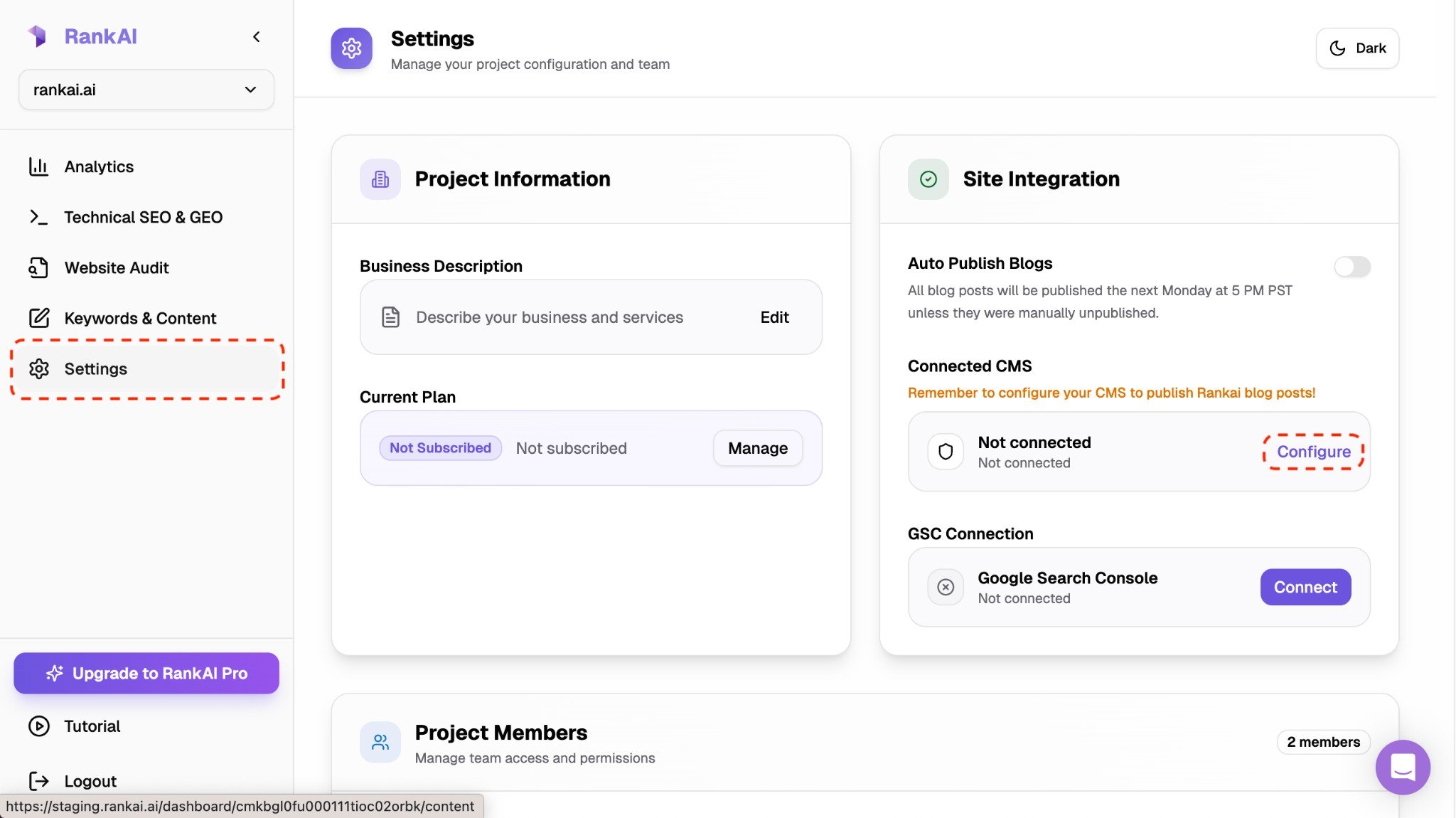
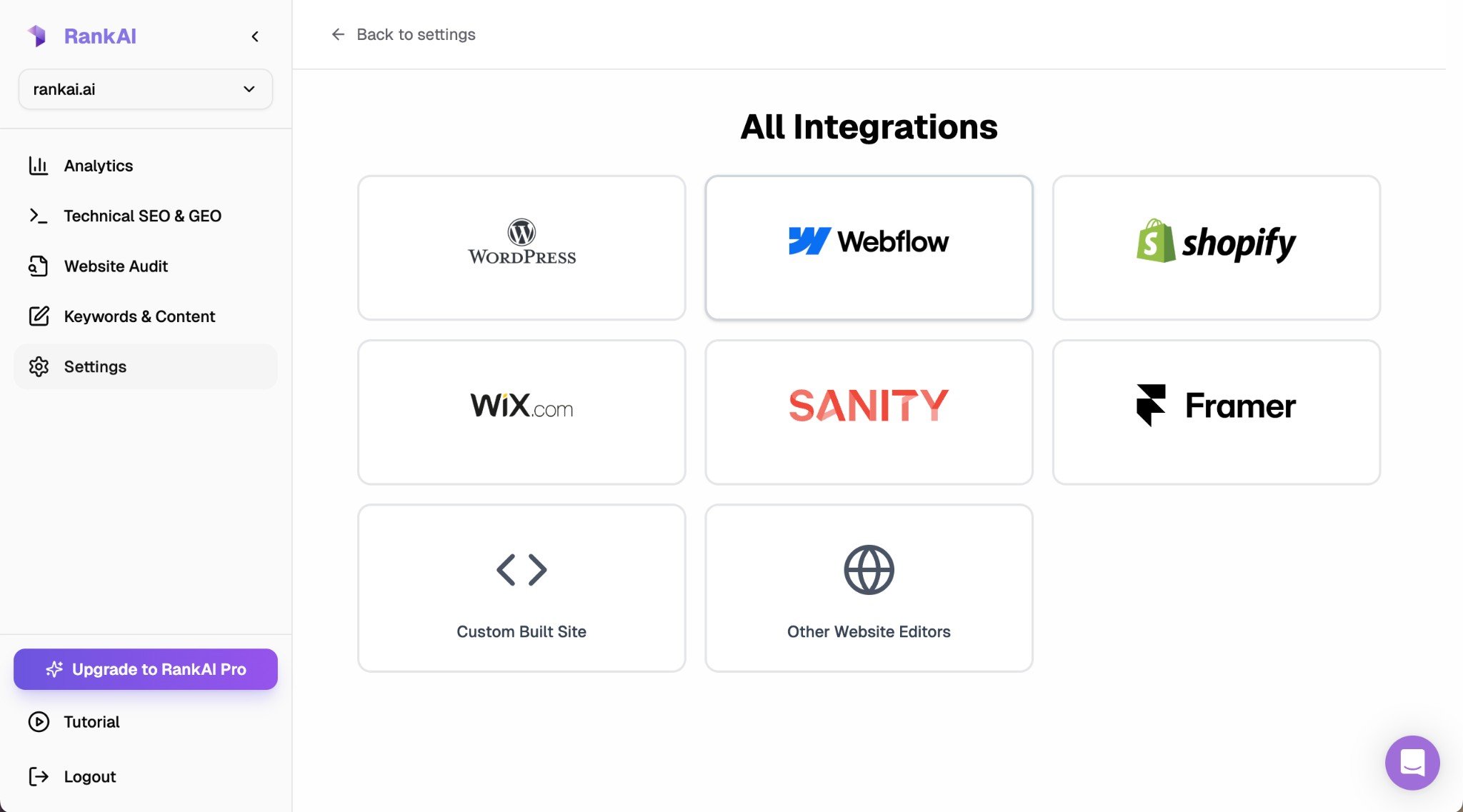
Step 1: Enter your site URL
In your RankAI project, go to the integration settings and enter your WordPress site URL in the Site URL field.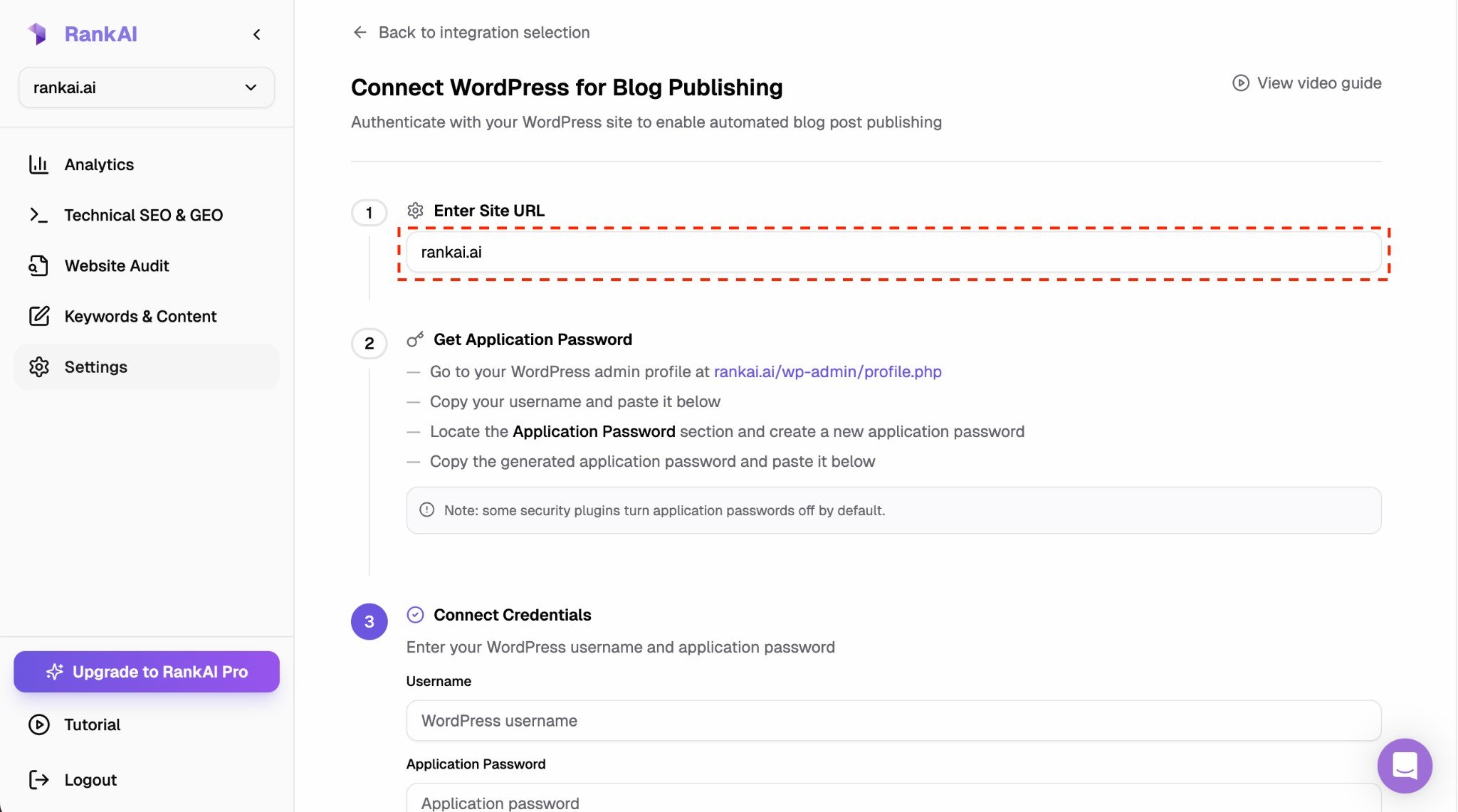
Step 2: Get an application password from WordPress
RankAI connects to WordPress using an application password. This is more secure than using your normal login password and can be revoked anytime from WordPress. Go to your WordPress admin profile atyourdomain.com/wp-admin/profile.php (click your name in the top right, then Edit Profile).
2.1 Copy your username
Find your username (the one you use to log in to WordPress). Copy it—you’ll paste it into RankAI in Step 3. Do not use your email address unless that is your actual WordPress username.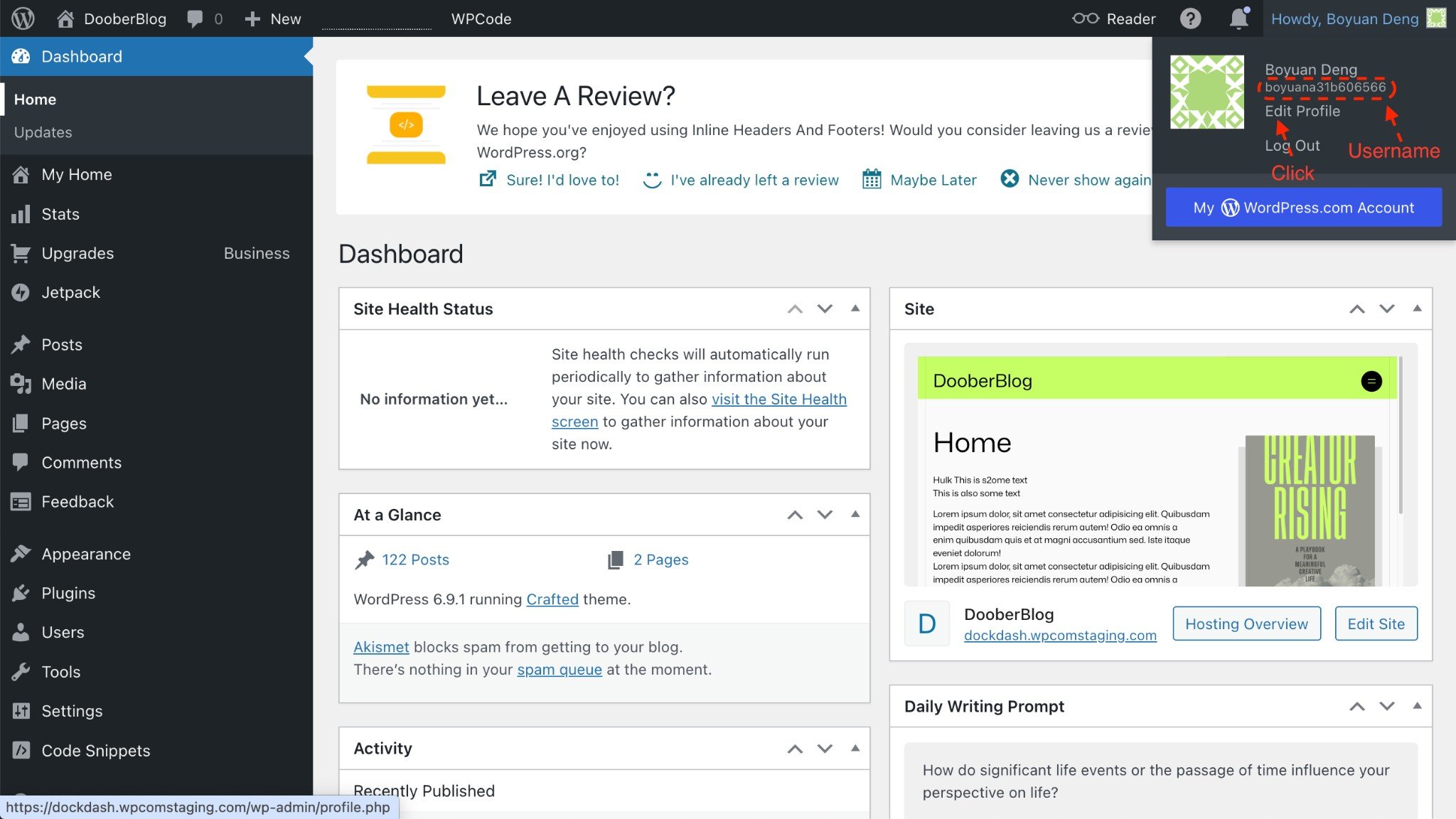
2.2 Create an application password
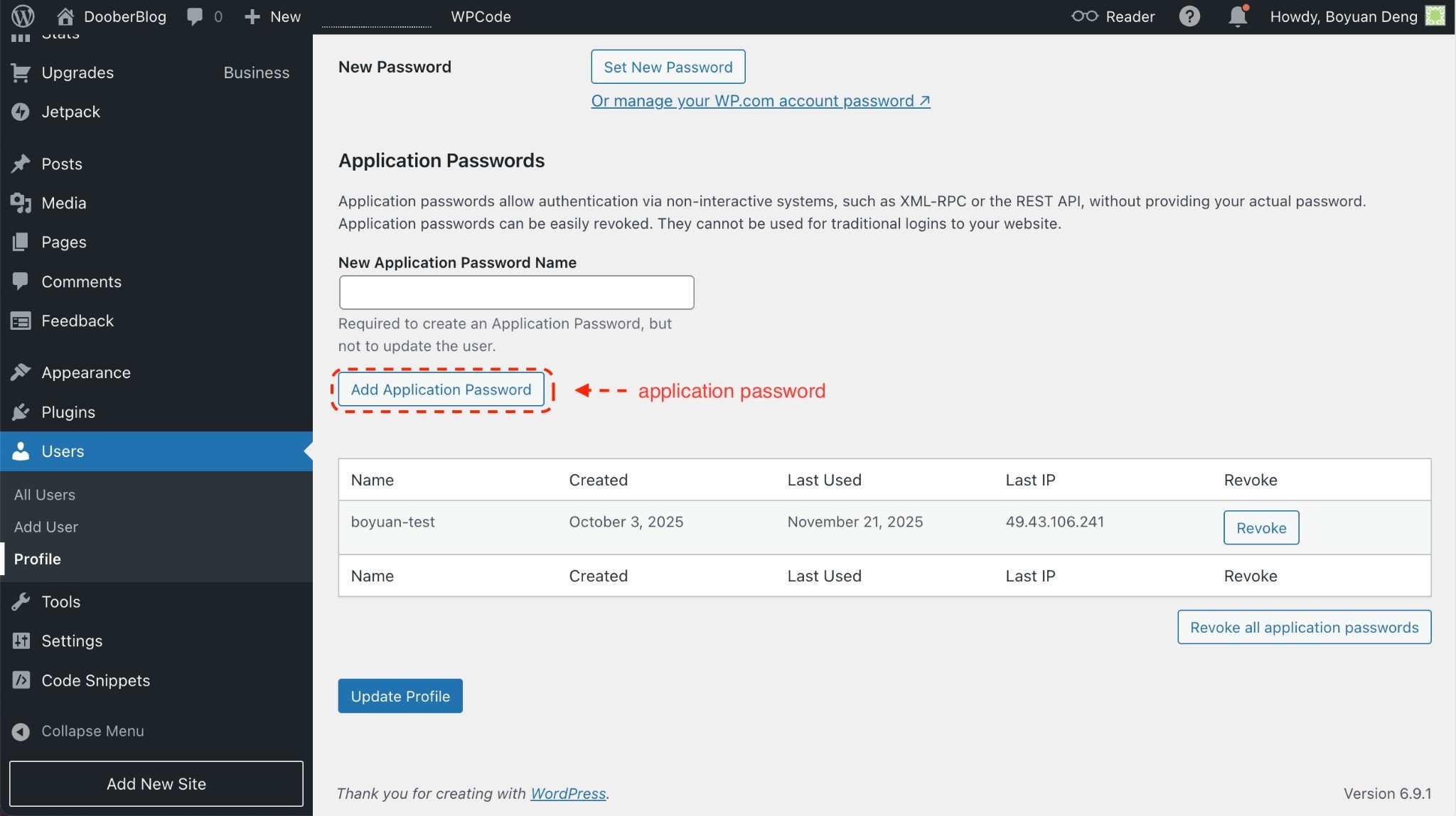
Scroll to the Application Passwords section. If you don’t see it, your WordPress may be older than 5.6 or the feature may be disabled (see the note below).- In the “New Application Password Name” field, enter a label (e.g. “RankAI”).
- Click Add New Application Password.
- WordPress will show a generated password once. Copy it immediately and store it somewhere safe—you won’t be able to see it again.
Step 3: Connect your credentials in RankAI
Back in your RankAI project, open the WordPress integration screen. Enter your WordPress username and the application password you created, then click Connect. Connect credentials Enter your WordPress username and application password. Username: WordPress username. Application Password: Application password. Username: Paste the WordPress username you copied in Step 2.1. Application Password: Paste the application password WordPress generated in Step 2.2 (the long string with spaces—you can paste it with or without spaces; RankAI will accept either). Click Connect. RankAI will verify the credentials and connect your site. Once connected, you can manage publishing and content settings from your RankAI dashboard.FAQ
What if the connection fails?
Double-check that (1) your site URL is correct and reachable, (2) your username matches your WordPress login, and (3) you’re using the application password (not your normal WordPress password).I don’t see the Application Passwords section in WordPress. What do I do?
Some security plugins turn application passwords off by default. Check your security or login plugin settings and enable application passwords for your user (or temporarily disable the restriction) so you can create one.Where can I get more support?
Contact your RankAI account team or check the help section in your dashboard.Install the technical SEO & AEO script
The CMS connection above handles articles. Follow the separate illustrated technical SEO & AEO setup to install the RankAI script.Last reviewed: October 12, 2026.