

Where to start in RankAI
In your RankAI project, open Settings in the sidebar. Under Site Integration, find Connected CMS and click Configure. On the next screen, select Framer to continue.Step 1: Install the RankAI plugin in Framer
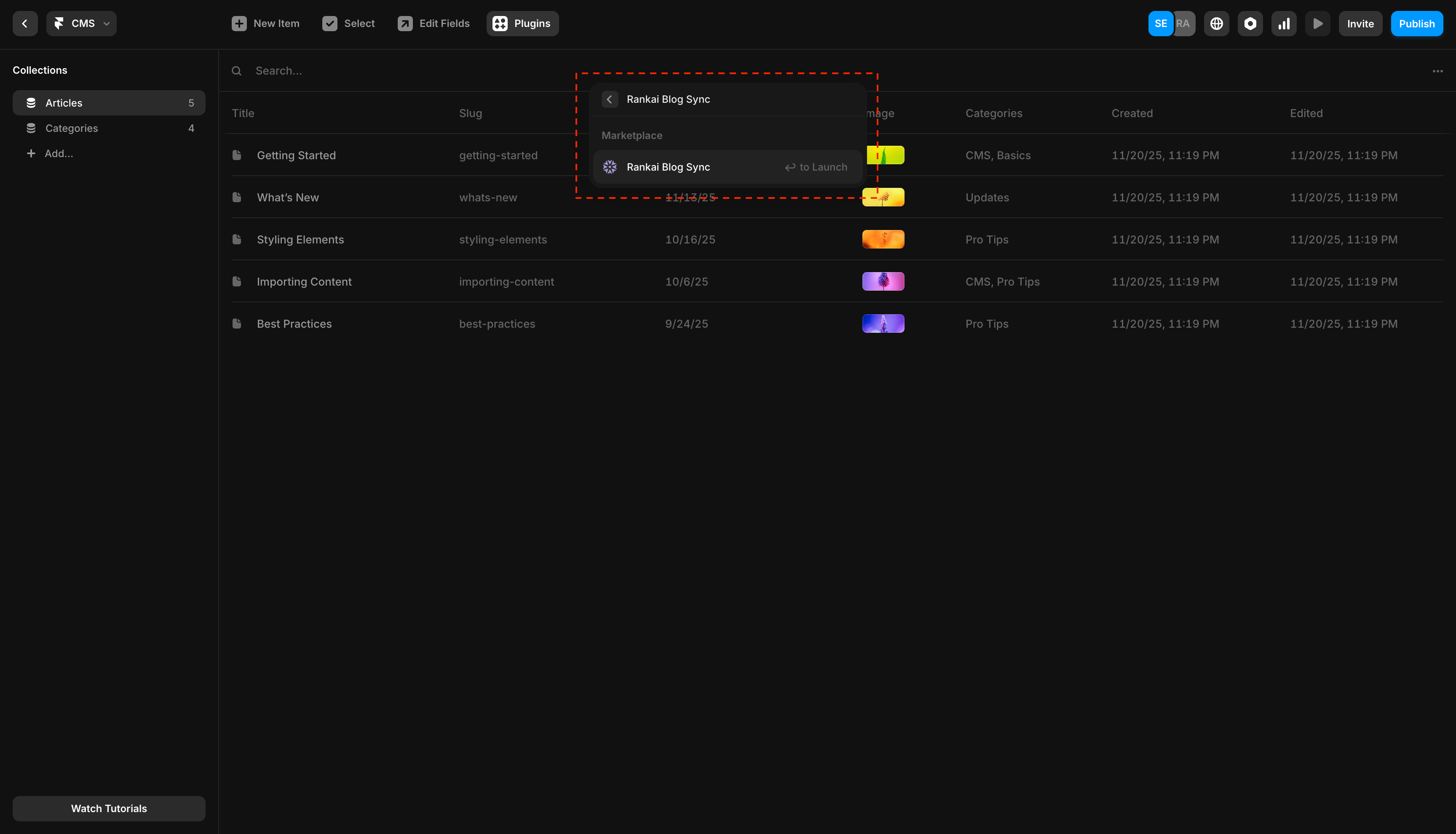
In your Framer dashboard, select the project you want to connect. Open the CMS section from the top, then in the top navigation bar click Plugins.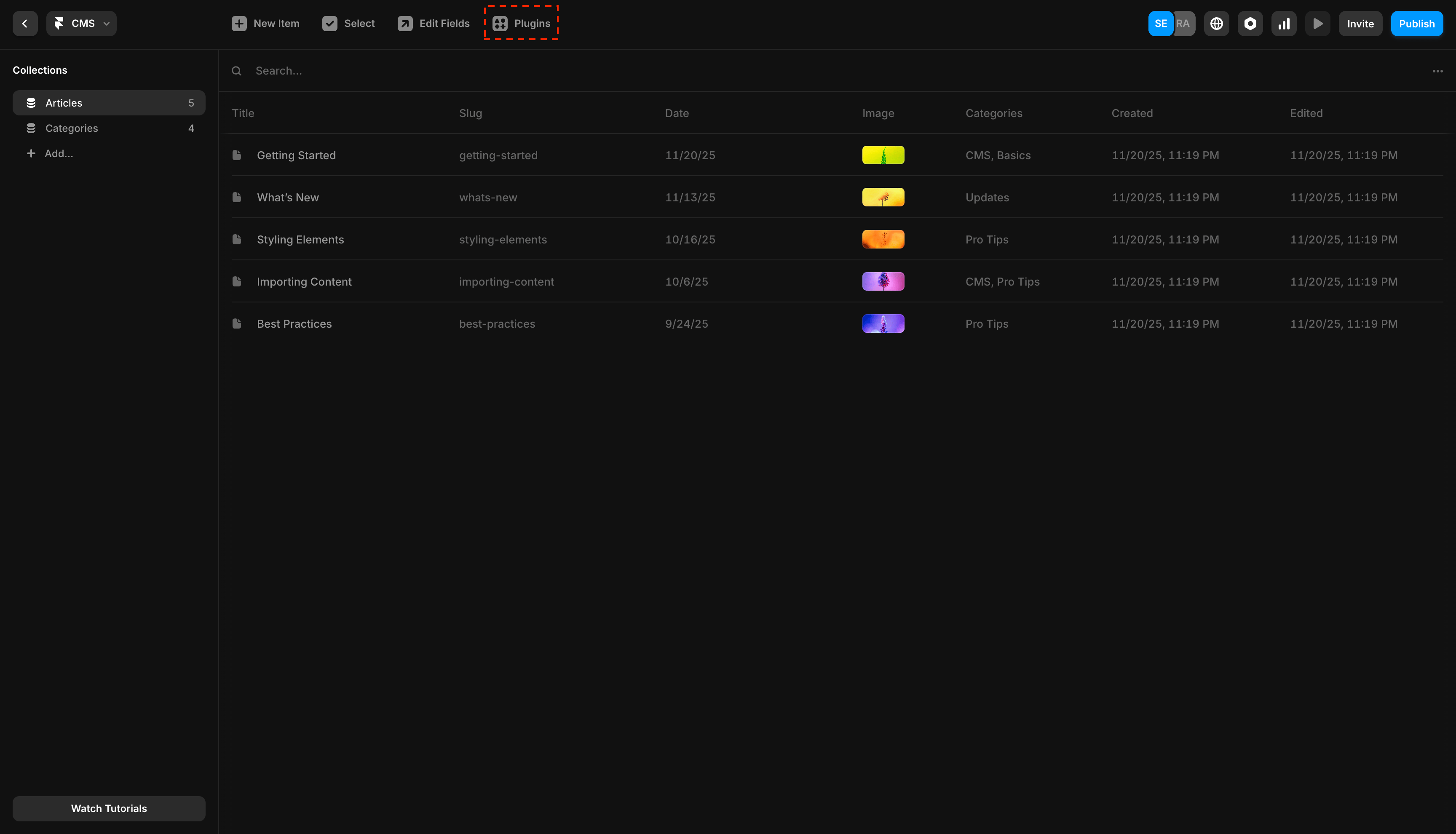
Step 2: Connect the plugin with your RankAI project ID
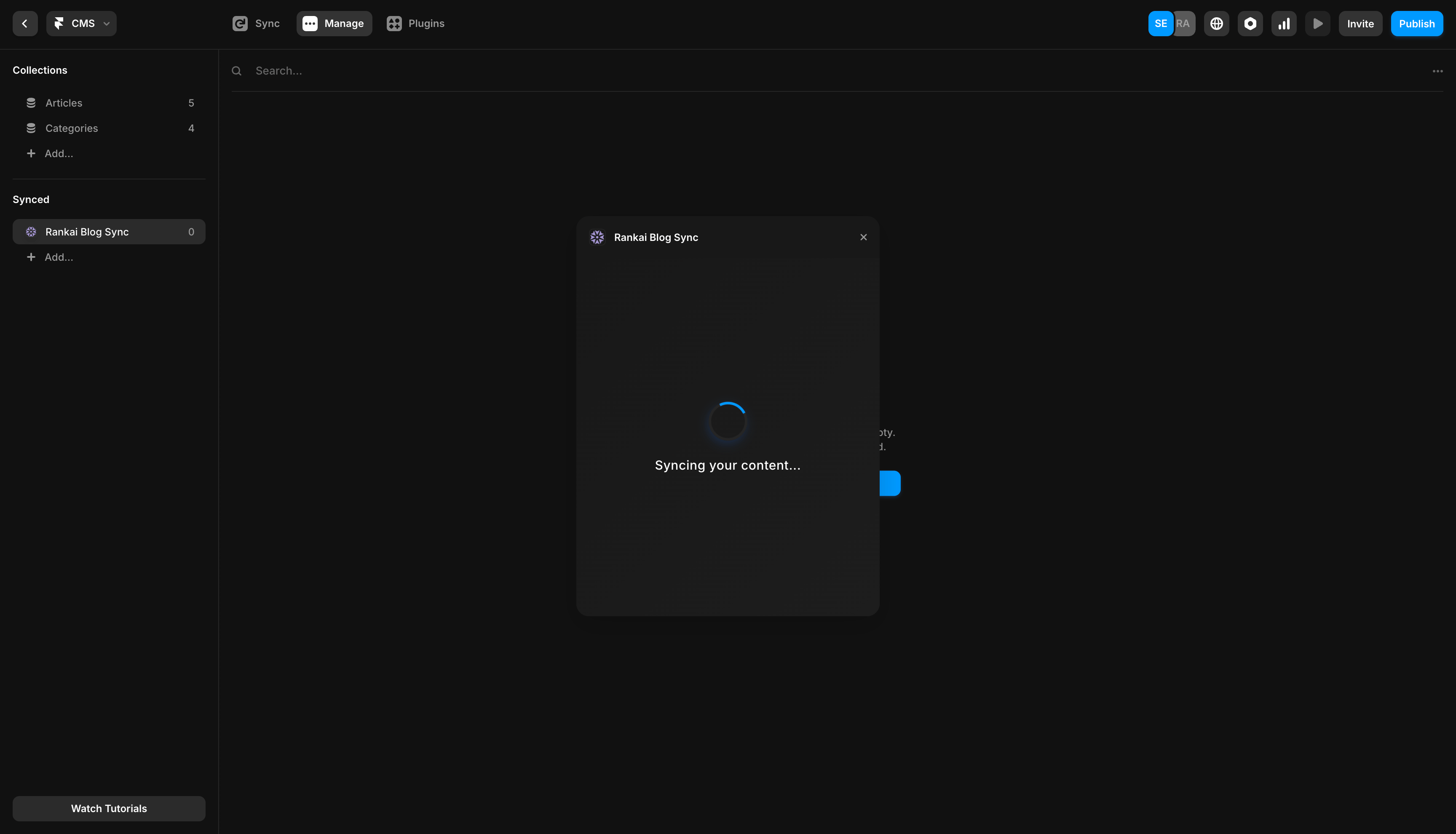
Open the RankAI plugin you just installed from the Synced section in Framer. Copy your Project ID from RankAI and paste it into the plugin, then click Submit.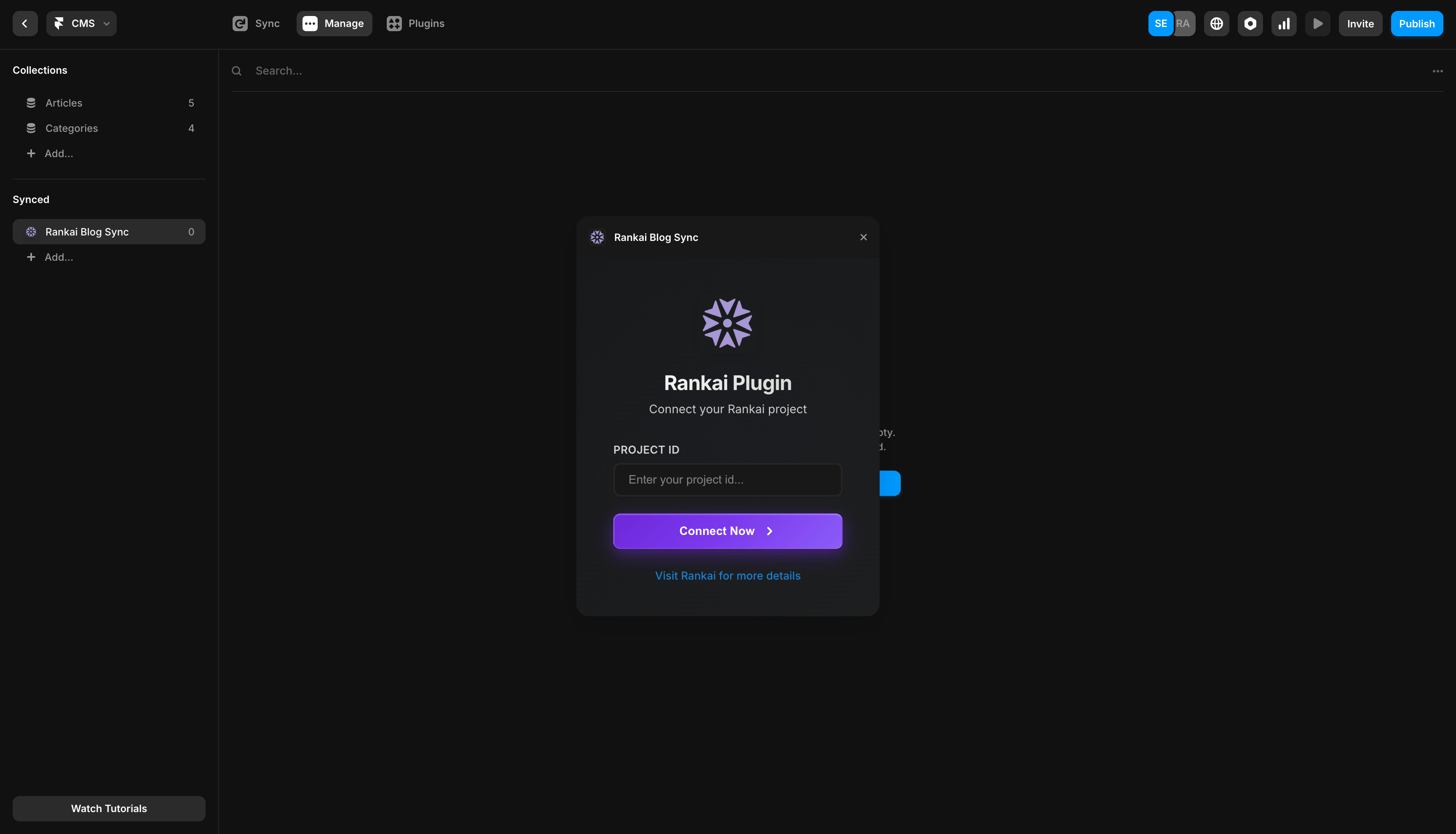
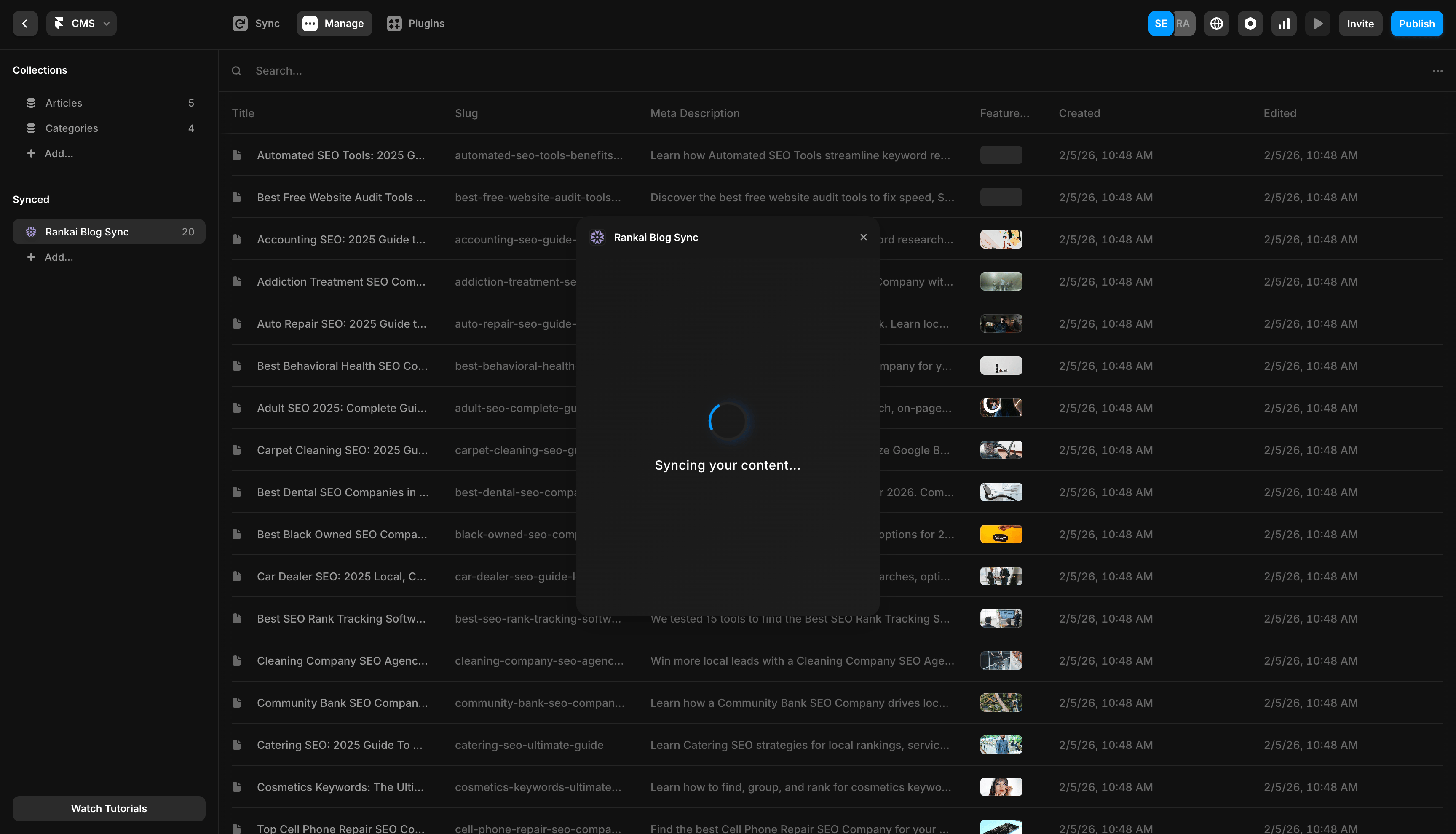
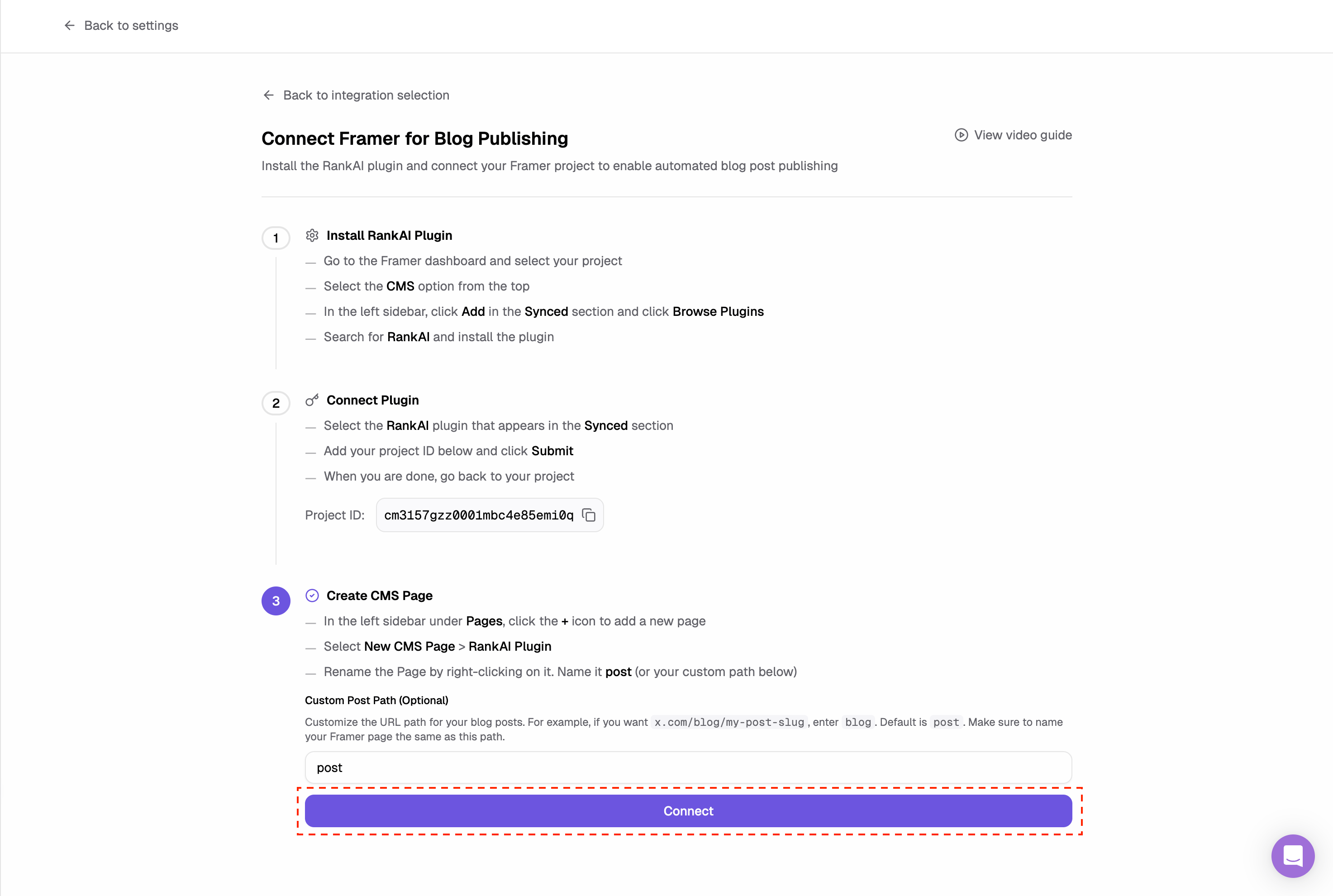
Step 3: Create a CMS page for RankAI posts
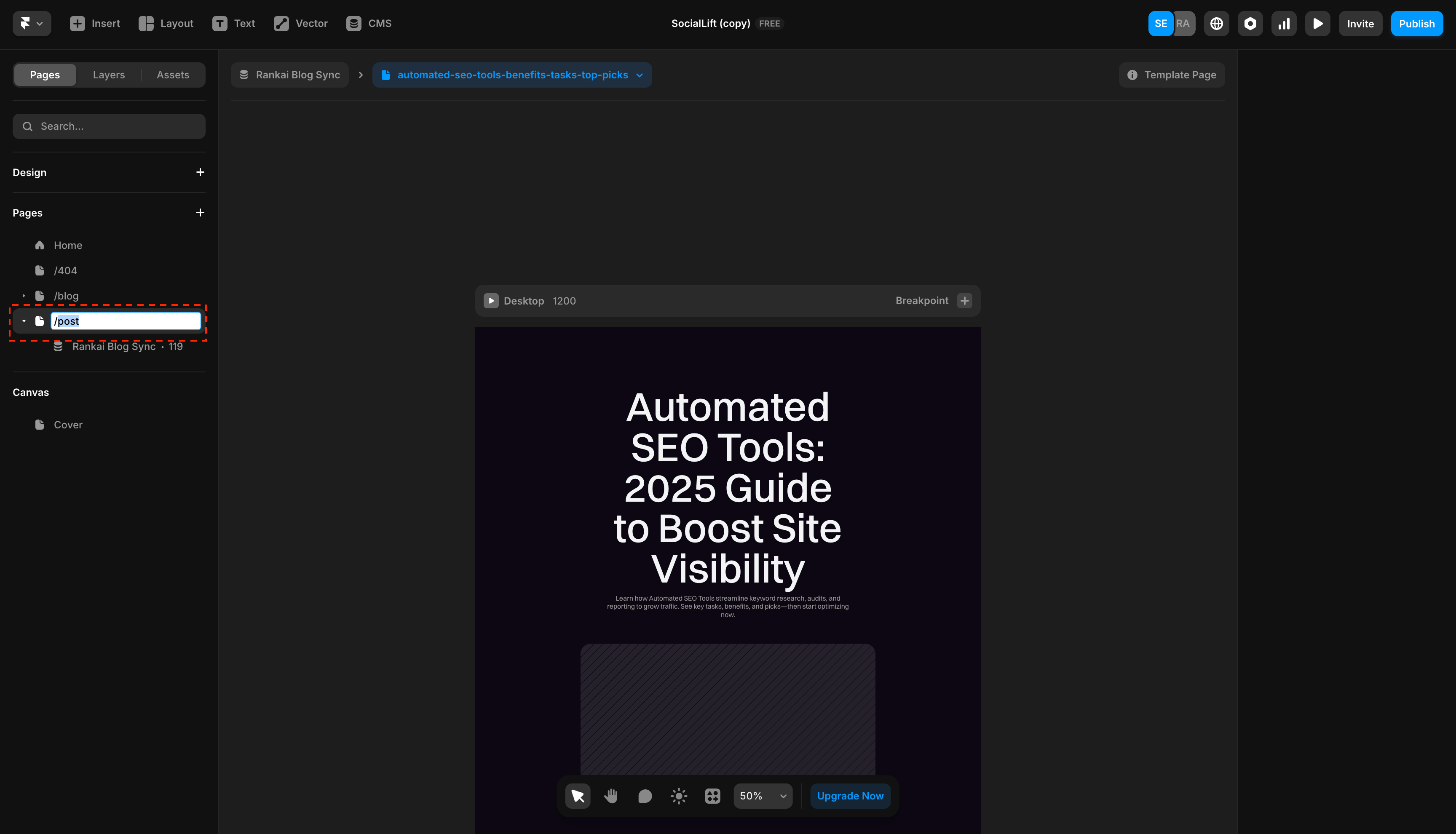
In Framer, go to Pages in the left sidebar and click the + icon. Choose New CMS Page and select the RankAI Plugin.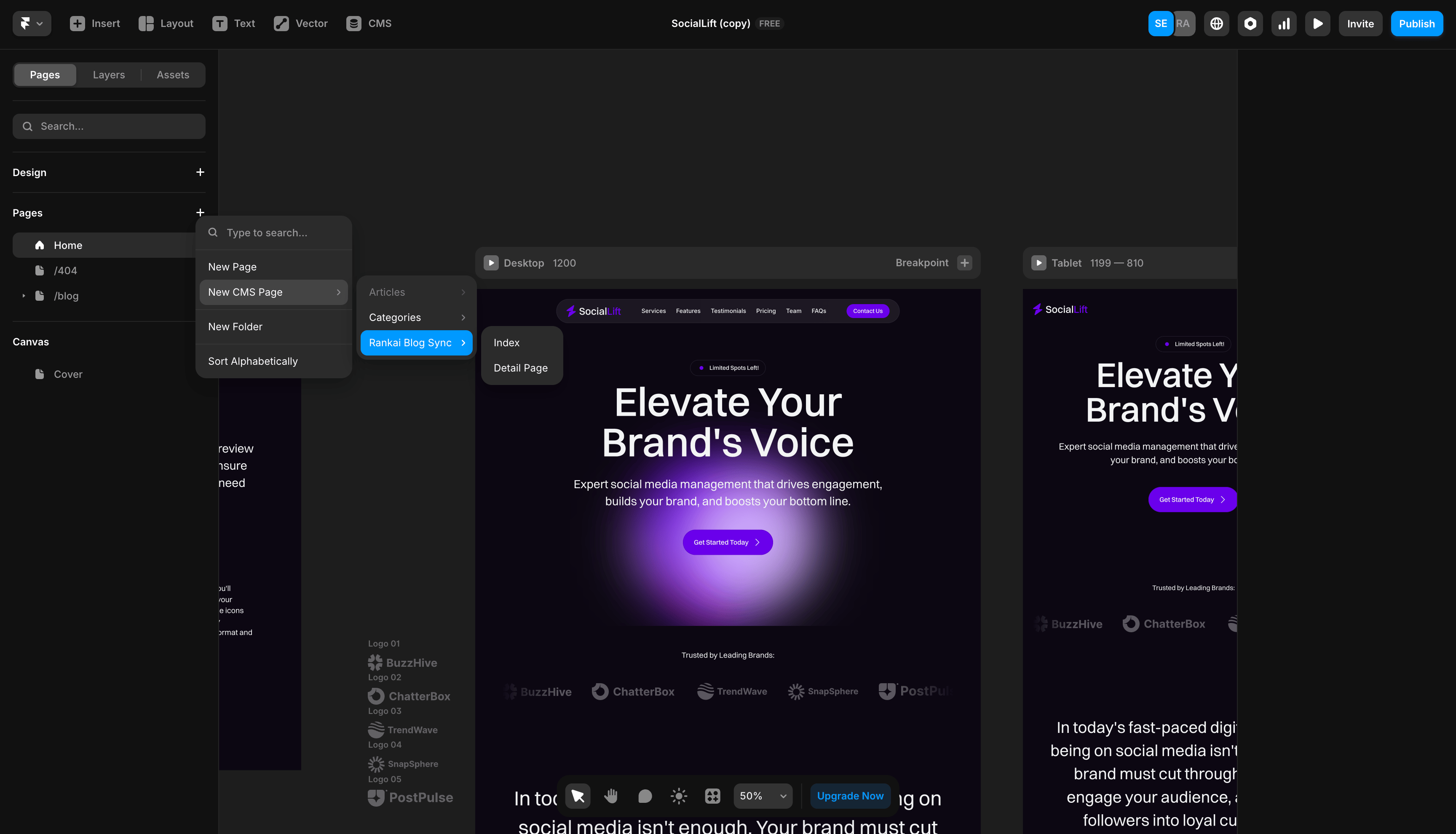
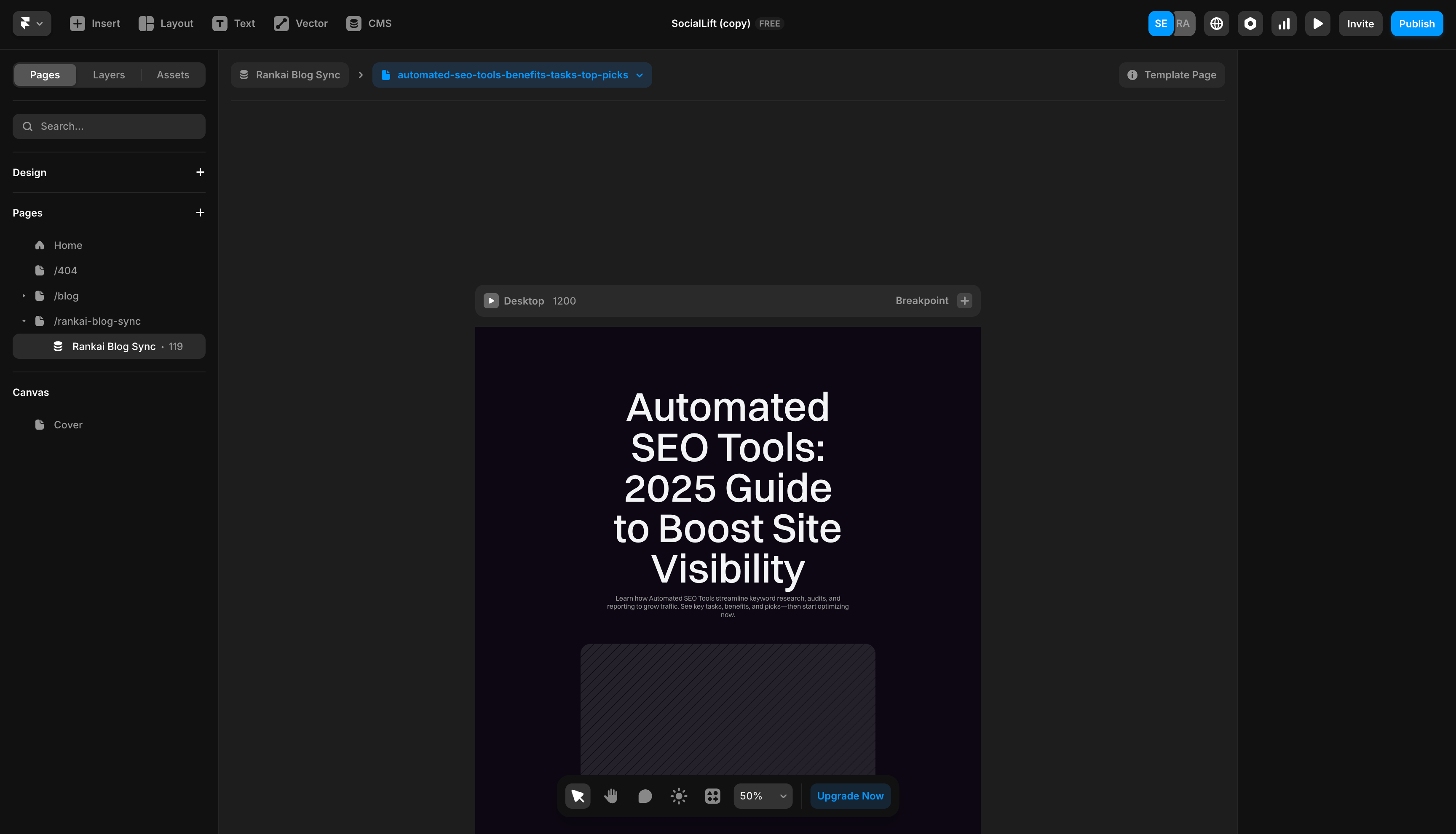
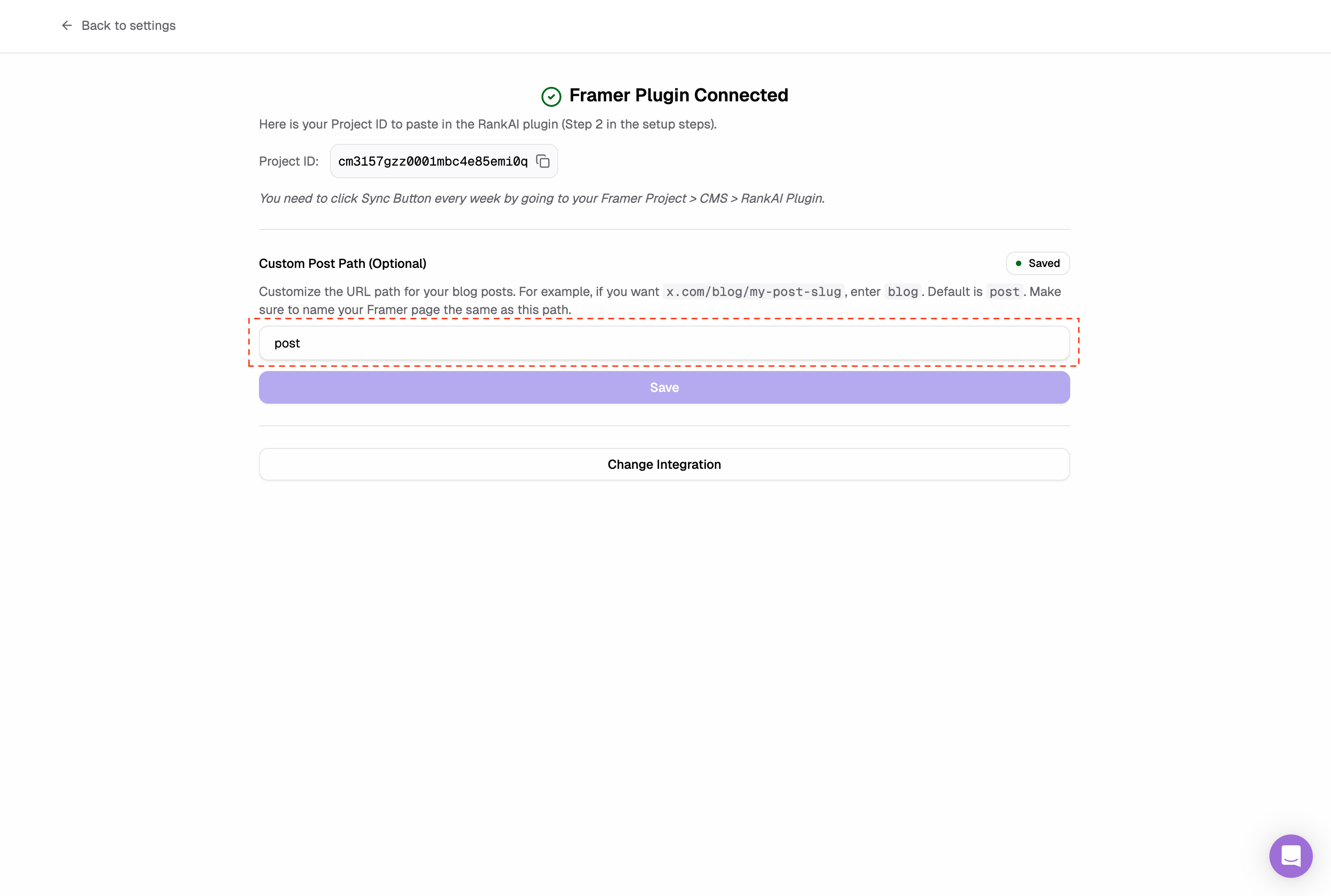
post), or set a custom path like blog.
FAQ
What should I use for the post path?
The default path ispost, but you can use blog or any other path that matches your Framer page name.
I connected the plugin, but RankAI says it can’t detect it.
Confirm the RankAI plugin is installed in your Framer project, the Project ID is saved, and the CMS page was created from the RankAI plugin template.Where can I get more support?
Contact your RankAI account team or check the help section in your dashboard.Install the technical SEO & AEO script
The CMS connection above handles articles. Follow the separate illustrated technical SEO & AEO setup to install the RankAI script.Last reviewed: October 12, 2026.