> ## Documentation Index
> Fetch the complete documentation index at: https://docs.rankai.ai/llms.txt
> Use this file to discover all available pages before exploring further.
# WordPress technical SEO & AEO integration guide
> Step-by-step guide to add the RankAI technical SEO & AEO script to your WordPress site using the free Insert Headers and Footers plugin.
This guide shows you how to add RankAI’s technical SEO & AEO script to your WordPress site. The script runs in the background on your site and helps search engines understand your pages better. You don’t need any coding experience. We'll use a free plugin and paste one block of code.
## Where to get your code
In your RankAI project, go to **Technical SEO** and look for the **Apply Changes** button at the top right and Click it. Select **WordPress** as the provider. snippet of code that looks like the one below. Copy the whole thing. Your version will have your own project ID in it.
```html theme={null}
```
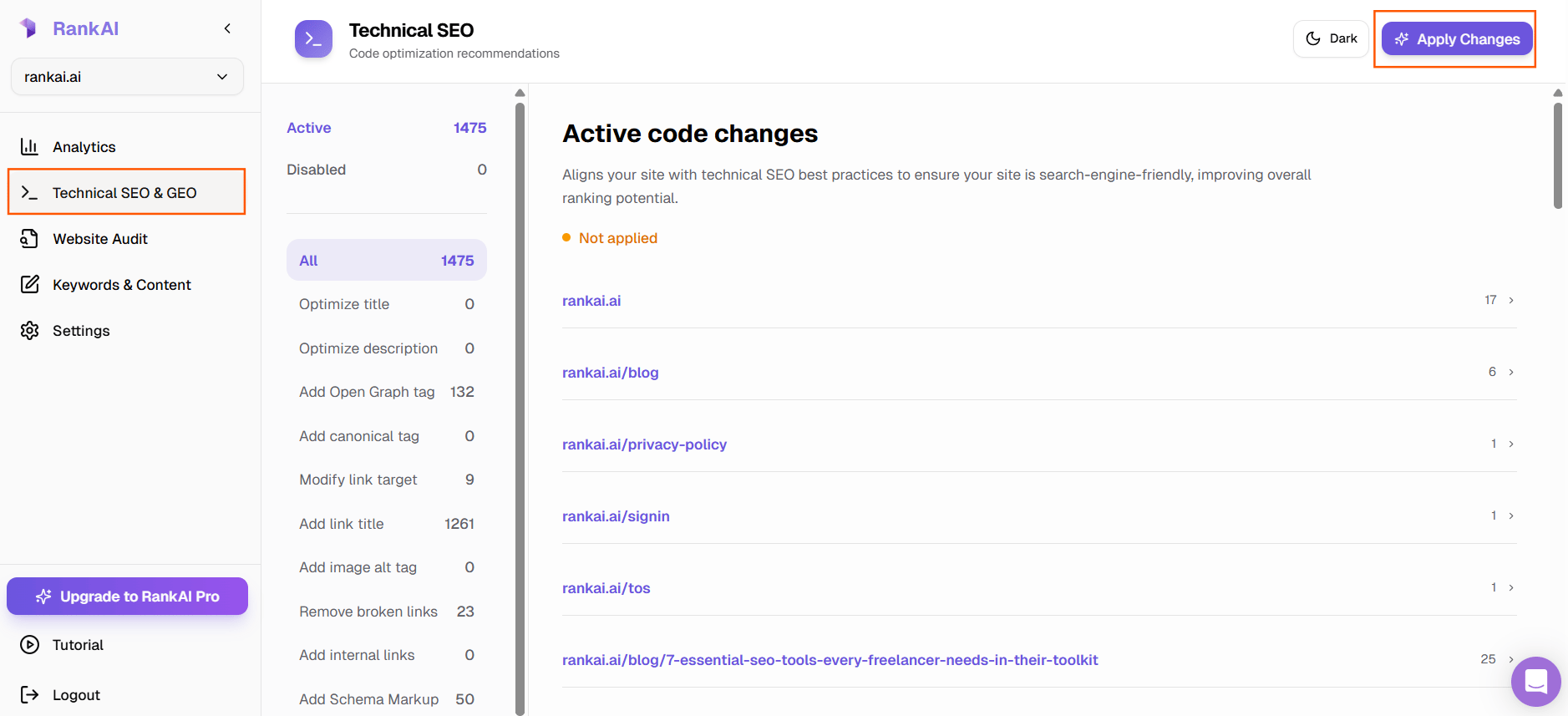
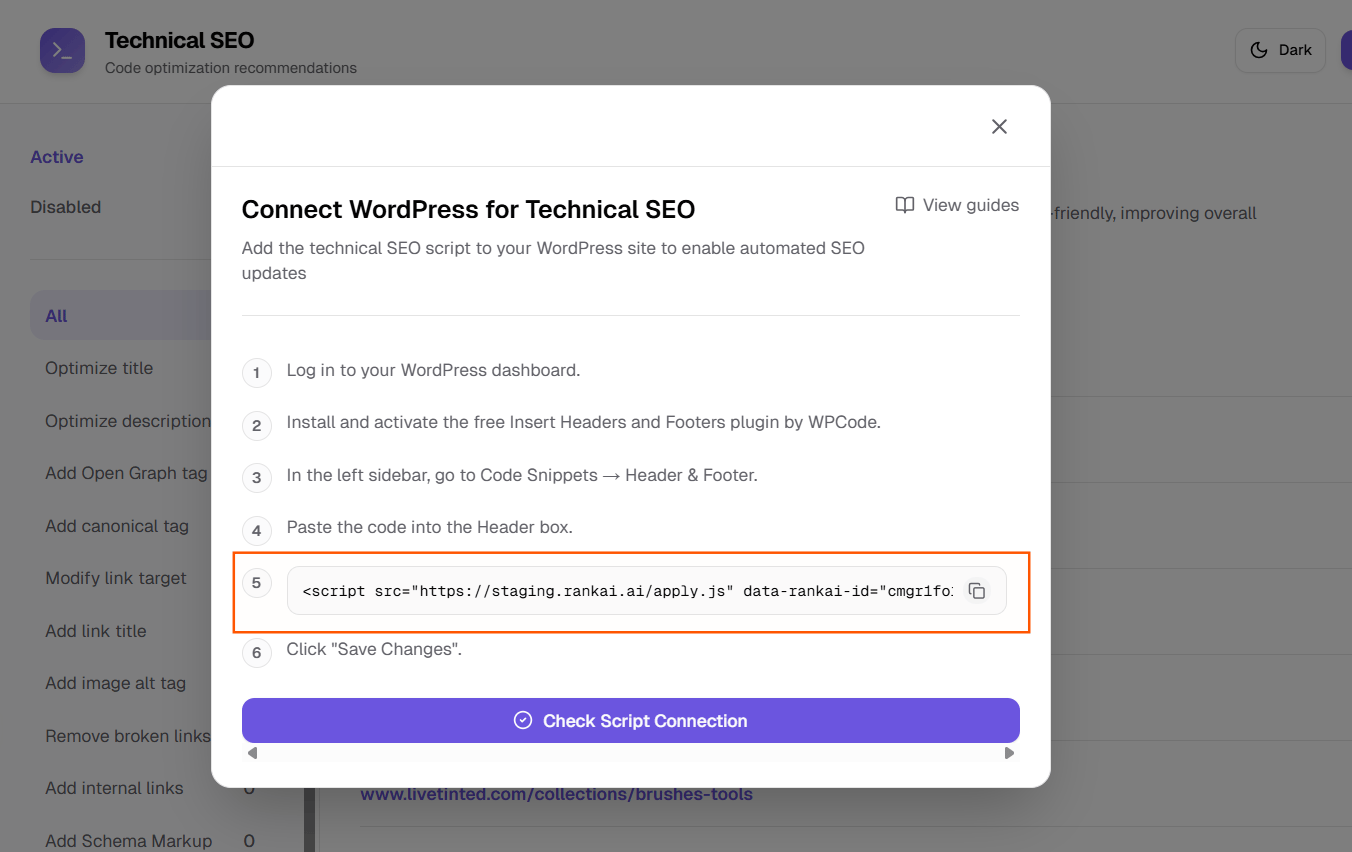 *Copy the code on the 5th step.*
Keep that code handy. In the next steps we’ll add it to your WordPress site so it loads on every page.
## Step 1: Log in to your WordPress dashboard
Open your website in the browser and go to the admin area. Usually you do this by typing `yourdomain.com/wp-admin` in the address bar (replace “yourdomain.com” with your actual site address). If your site has a “Log in” link in the menu or footer, you can click that instead.
Enter the username and password you use to manage your site. Click **Log In**. You should land on the main dashboard. That's the screen with the left sidebar and options like Posts, Pages, and Plugins.
## Step 2: Install and activate the Insert Headers and Footers plugin
We’ll use a free plugin so we can add the RankAI script without editing theme files. In the left sidebar, click **Plugins**.
On the page opened, in the search box, type **Insert Headers and Footers** or **WPCode**. Look for the plugin named “Insert Headers and Footers” by WPCode. Click **Install Now** next to it. When the button changes to **Activate**, click **Activate**.
Once it’s activated, you’re ready for the next step. You might see a welcome message from WPCode. You can close it or skip it; we only need the Header & Footer part.
*Copy the code on the 5th step.*
Keep that code handy. In the next steps we’ll add it to your WordPress site so it loads on every page.
## Step 1: Log in to your WordPress dashboard
Open your website in the browser and go to the admin area. Usually you do this by typing `yourdomain.com/wp-admin` in the address bar (replace “yourdomain.com” with your actual site address). If your site has a “Log in” link in the menu or footer, you can click that instead.
Enter the username and password you use to manage your site. Click **Log In**. You should land on the main dashboard. That's the screen with the left sidebar and options like Posts, Pages, and Plugins.
## Step 2: Install and activate the Insert Headers and Footers plugin
We’ll use a free plugin so we can add the RankAI script without editing theme files. In the left sidebar, click **Plugins**.
On the page opened, in the search box, type **Insert Headers and Footers** or **WPCode**. Look for the plugin named “Insert Headers and Footers” by WPCode. Click **Install Now** next to it. When the button changes to **Activate**, click **Activate**.
Once it’s activated, you’re ready for the next step. You might see a welcome message from WPCode. You can close it or skip it; we only need the Header & Footer part.
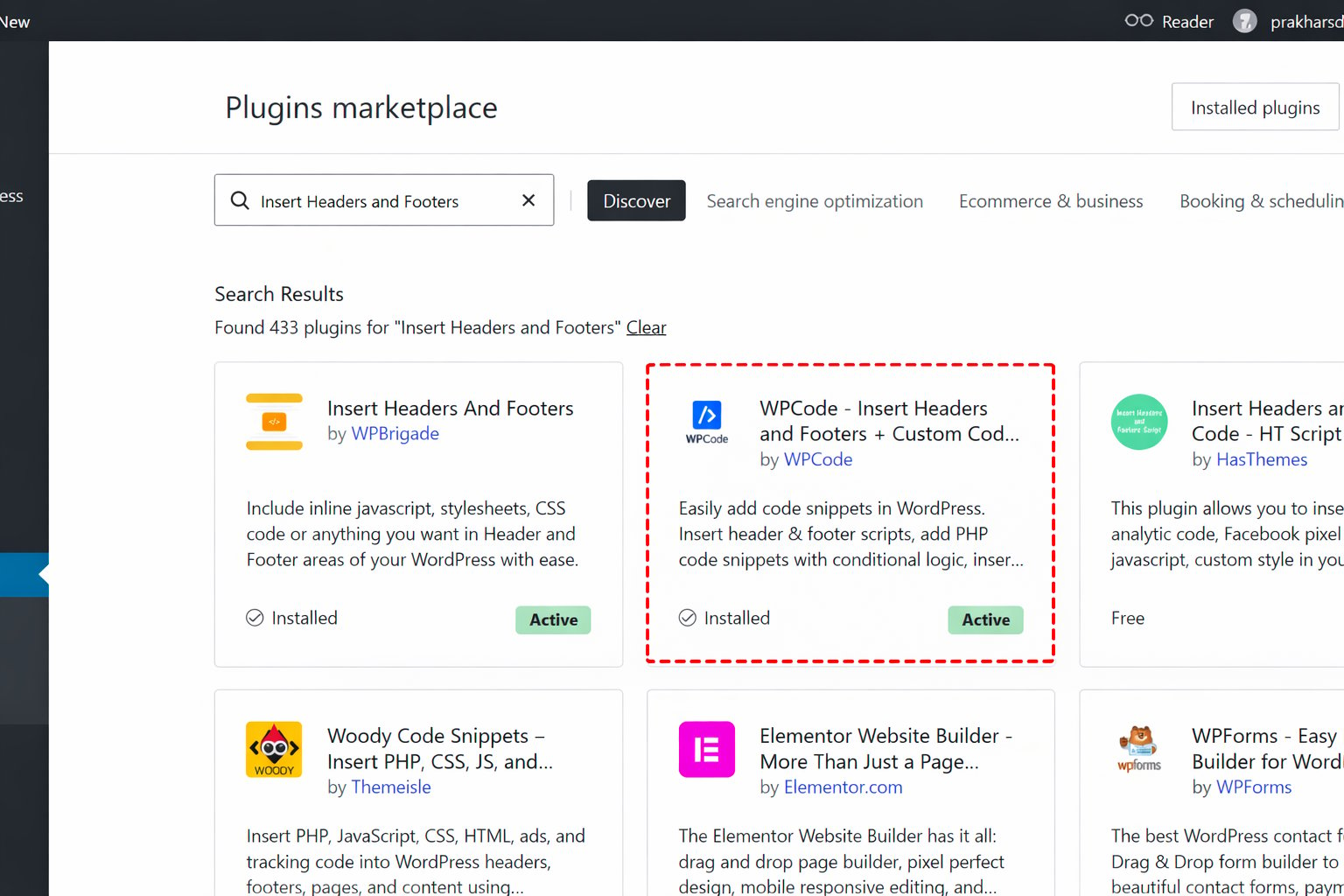 *Plugins → Add New → Search for Insert Headers and Footers plugin by WPCode.*
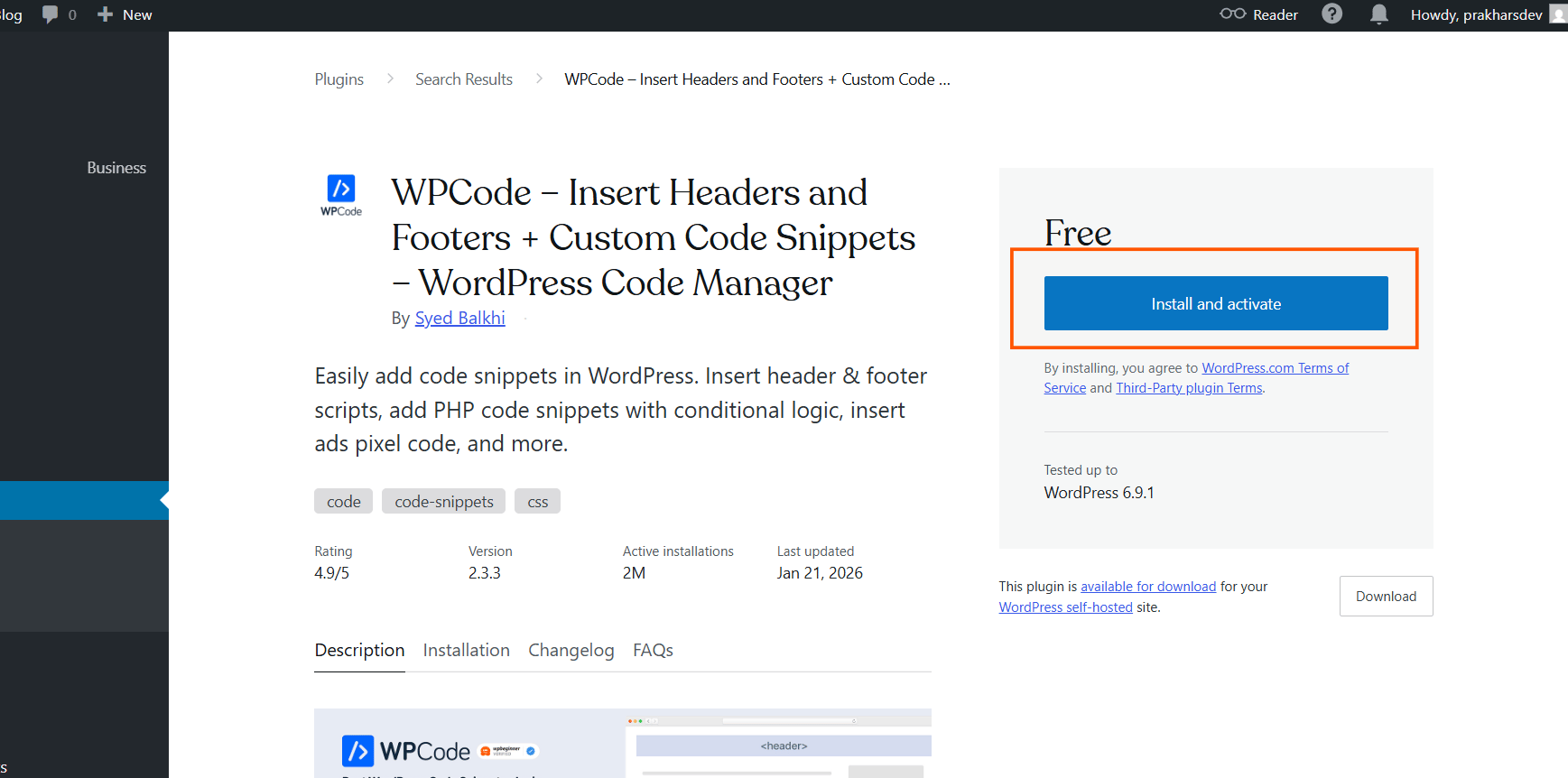 *Click Install and Activate Button.*
## Step 3: Open the Header & Footer settings
In the left sidebar, look for **Settings**. Hover over it, then click **WP Headers and Footers**.
You’ll see a page with two main boxes: one for **Header** and one for **Footer**. We need the Header box. That's where the RankAI script should go so it loads at the top of your pages.
*Click Install and Activate Button.*
## Step 3: Open the Header & Footer settings
In the left sidebar, look for **Settings**. Hover over it, then click **WP Headers and Footers**.
You’ll see a page with two main boxes: one for **Header** and one for **Footer**. We need the Header box. That's where the RankAI script should go so it loads at the top of your pages.
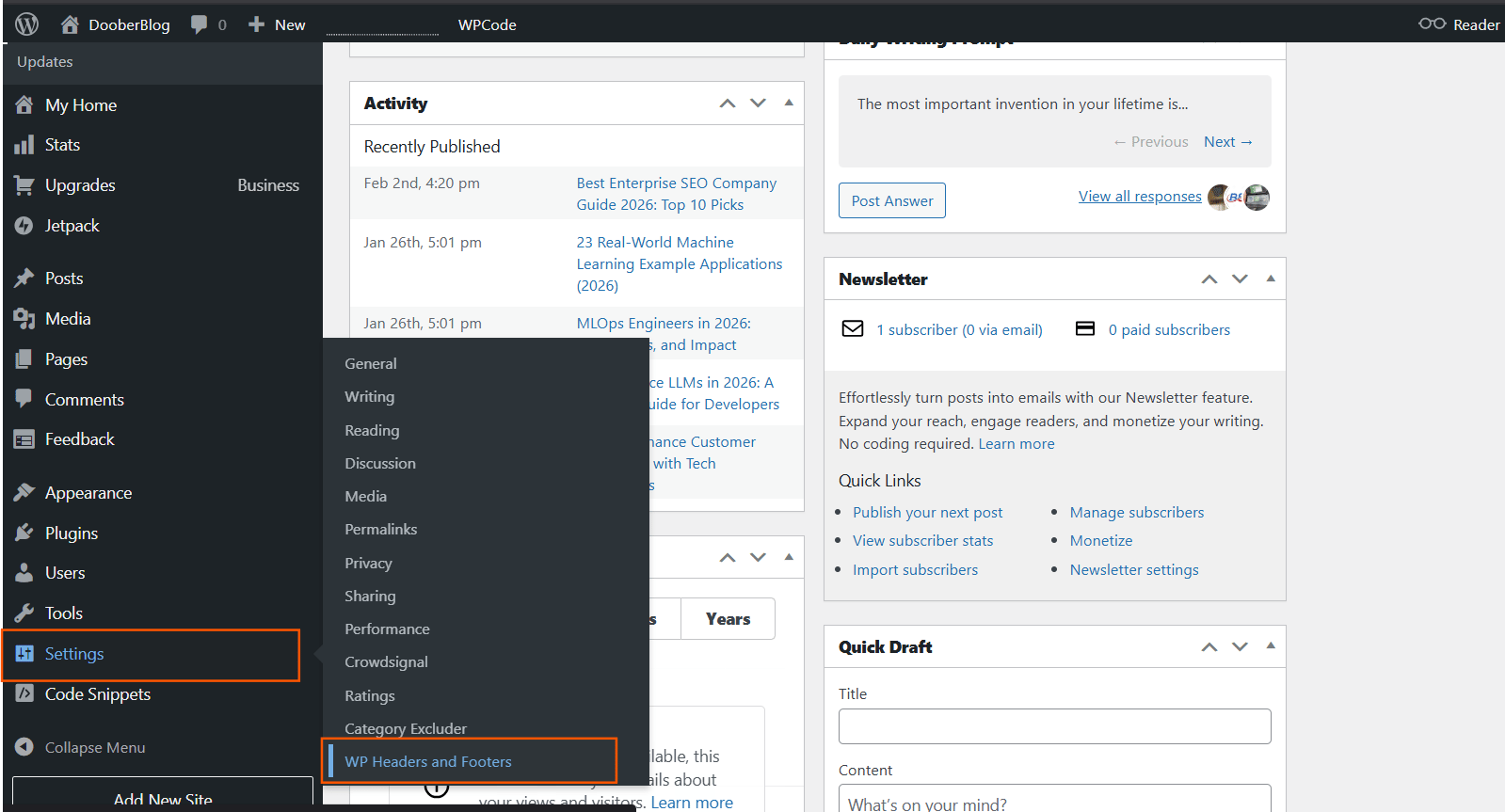 *Settings → WP Headers and Footers.*
## Step 4: Paste the code into the Header box
Click inside the **Header** box (the top one). Paste the code you copied from RankAI. You can use right‑click → Paste or the keyboard shortcut (Ctrl+V on Windows, Cmd+V on Mac).
Make sure you paste the **entire** line, from ``. Don’t change or remove any part of it, and don’t put anything else in the Header box unless you already had other code there (in that case, paste the RankAI code on a new line).
Leave the Footer box empty for this script. Only the Header box is needed.
*Settings → WP Headers and Footers.*
## Step 4: Paste the code into the Header box
Click inside the **Header** box (the top one). Paste the code you copied from RankAI. You can use right‑click → Paste or the keyboard shortcut (Ctrl+V on Windows, Cmd+V on Mac).
Make sure you paste the **entire** line, from ``. Don’t change or remove any part of it, and don’t put anything else in the Header box unless you already had other code there (in that case, paste the RankAI code on a new line).
Leave the Footer box empty for this script. Only the Header box is needed.
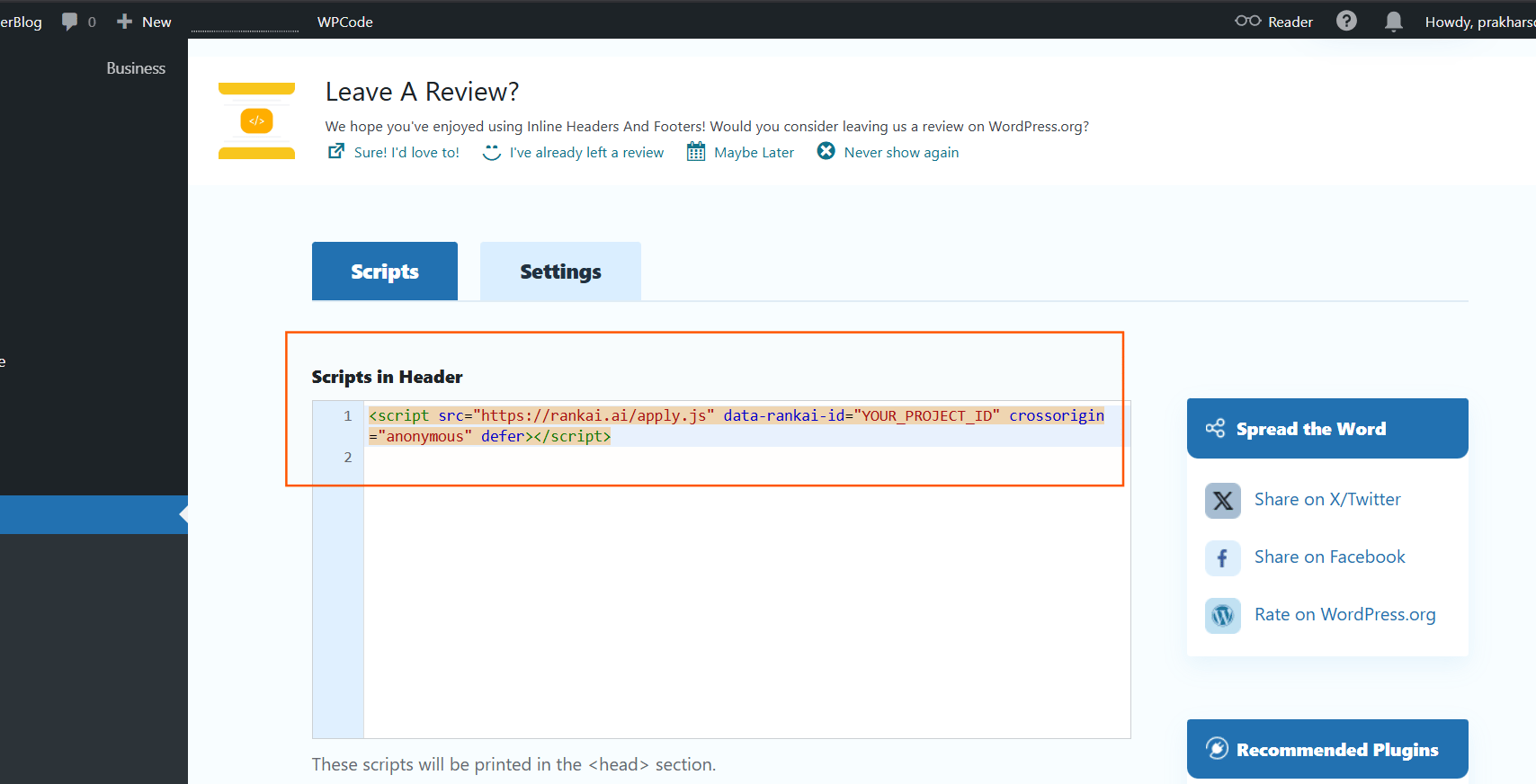 *Paste the code into the Header box.*
## Step 5: Save your changes and check
Scroll down to the bottom and click the **Save Changes** button. Wait until you see a message that the settings were saved (often a green or blue notice at the top of the page).
That’s it. The RankAI script is now added to your site. It will load on every page automatically. You don’t need to do anything else in WordPress. RankAI will use it to apply the technical SEO & AEO settings you’ve chosen in your project.
*Paste the code into the Header box.*
## Step 5: Save your changes and check
Scroll down to the bottom and click the **Save Changes** button. Wait until you see a message that the settings were saved (often a green or blue notice at the top of the page).
That’s it. The RankAI script is now added to your site. It will load on every page automatically. You don’t need to do anything else in WordPress. RankAI will use it to apply the technical SEO & AEO settings you’ve chosen in your project.
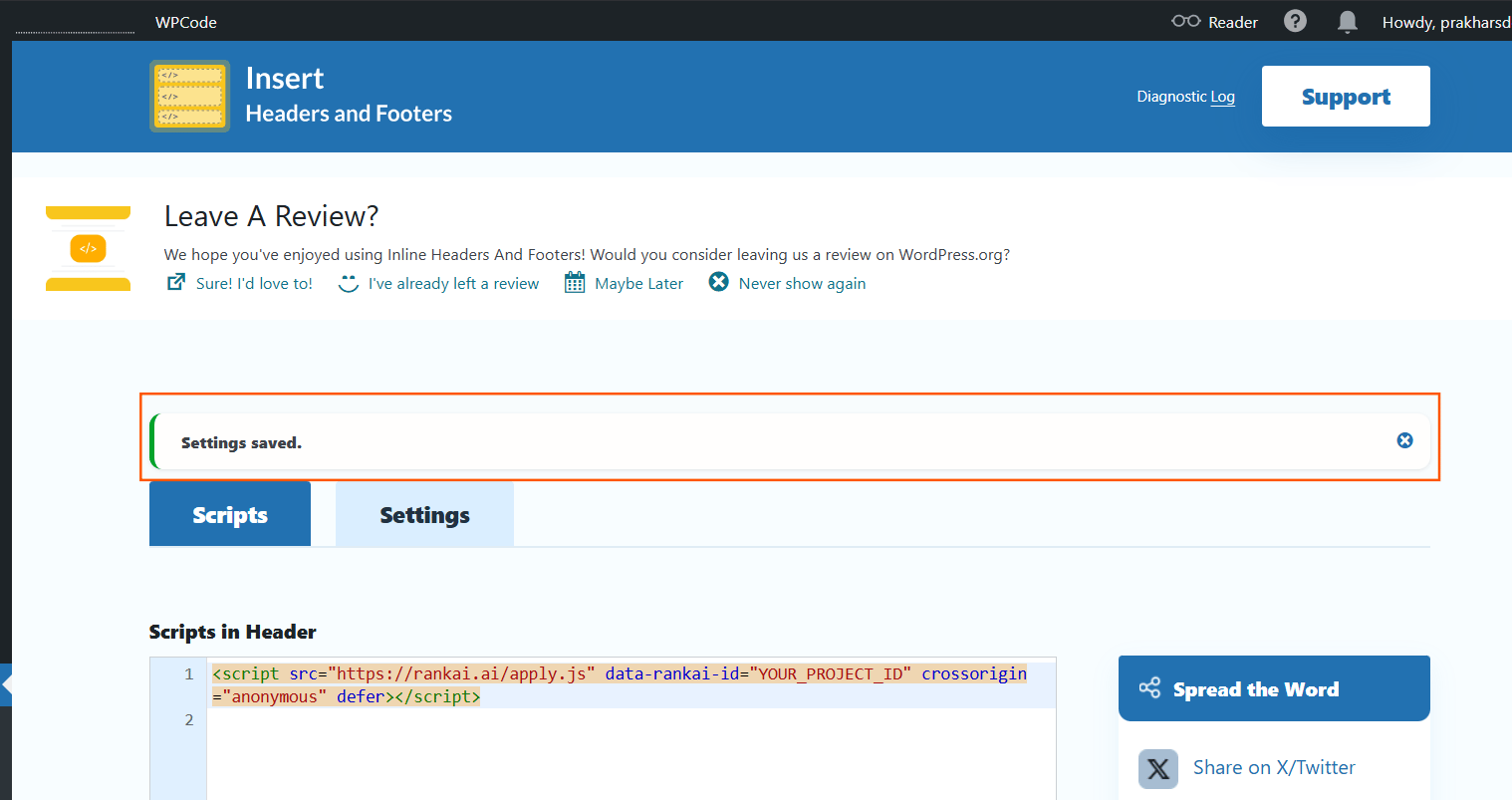 *Save Changes.*
Now go to RankAI tab again and click **Check Script Connection**. If you see a text in green saying **Script detected on your site**, the script is connected correctly.
*Save Changes.*
Now go to RankAI tab again and click **Check Script Connection**. If you see a text in green saying **Script detected on your site**, the script is connected correctly.
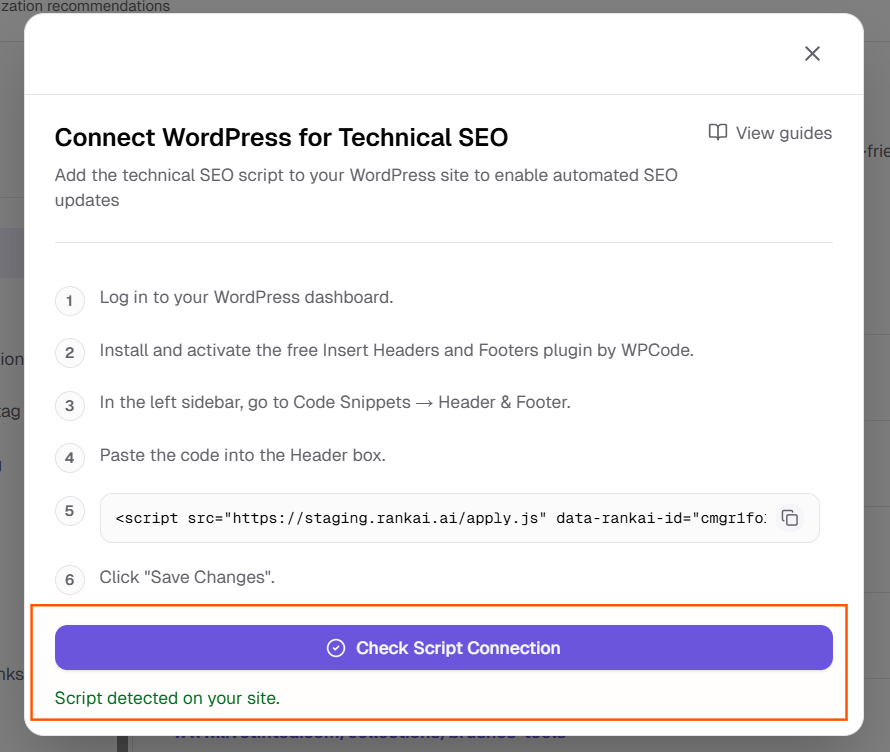 *Check Connection.*
## Quick checklist
* Logged in to the WordPress dashboard
* Insert Headers and Footers plugin installed and activated
* Opened Code Snippets → Header & Footer
* Pasted the full script into the Header box (not the Footer)
* Clicked Save Changes
## FAQ
### I use a different plugin for adding code. Can I use that instead?
Yes. Any plugin that lets you add code to the \ section of your site (the “header”) will work. The steps will be similar: open the plugin’s settings, find the header or “before \” area, paste the RankAI script there, and save.
### Should the script go in the Header or the Footer box?
Use the **Header** box. That way the script loads at the top of the page as intended. Putting it in the footer can sometimes delay it or change how it runs.
### How do I know if it’s working?
After saving, open your website in a new tab (the public site, not the dashboard). You can use your browser’s “View page source” option (usually right‑click → View Page Source) and search for “rankai” or “apply.js”. If you see the script in the source code, it’s loaded correctly.
### Where can I get more support?
Contact your RankAI account team or check the help section in your dashboard.
## Related setup
For article publishing, use the [original CMS integration guide](/integrations/wordpress). Script detection confirms the installation; inspect the affected public pages to verify changes.
***
*Last reviewed: October 12, 2026.*
This documentation is built and hosted on [Mintlify](https://mintlify.com), a developer documentation platform.
*Check Connection.*
## Quick checklist
* Logged in to the WordPress dashboard
* Insert Headers and Footers plugin installed and activated
* Opened Code Snippets → Header & Footer
* Pasted the full script into the Header box (not the Footer)
* Clicked Save Changes
## FAQ
### I use a different plugin for adding code. Can I use that instead?
Yes. Any plugin that lets you add code to the \ section of your site (the “header”) will work. The steps will be similar: open the plugin’s settings, find the header or “before \” area, paste the RankAI script there, and save.
### Should the script go in the Header or the Footer box?
Use the **Header** box. That way the script loads at the top of the page as intended. Putting it in the footer can sometimes delay it or change how it runs.
### How do I know if it’s working?
After saving, open your website in a new tab (the public site, not the dashboard). You can use your browser’s “View page source” option (usually right‑click → View Page Source) and search for “rankai” or “apply.js”. If you see the script in the source code, it’s loaded correctly.
### Where can I get more support?
Contact your RankAI account team or check the help section in your dashboard.
## Related setup
For article publishing, use the [original CMS integration guide](/integrations/wordpress). Script detection confirms the installation; inspect the affected public pages to verify changes.
***
*Last reviewed: October 12, 2026.*
This documentation is built and hosted on [Mintlify](https://mintlify.com), a developer documentation platform.