> ## Documentation Index
> Fetch the complete documentation index at: https://docs.rankai.ai/llms.txt
> Use this file to discover all available pages before exploring further.
# Sanity technical SEO & AEO integration guide
> Sanity technical SEO & AEO integration guide. Follow the original illustrated setup steps.
This guide shows you how to add RankAI's technical SEO & AEO script to the frontend of your Sanity-powered site. Sanity is a headless CMS: your content lives in Sanity, but the website visitors see is built with a custom frontend (for example Next.js, React, or plain HTML). You add the script in that frontend so it loads on every page.
## Where to get your code
In your RankAI project, go to **Technical SEO** and look for the **Apply Changes** button at the top right and Click it. Select **Sanity** as the provider. snippet of code that looks like the one below. Copy the whole thing. Your version will have your own project ID in it.
```
```
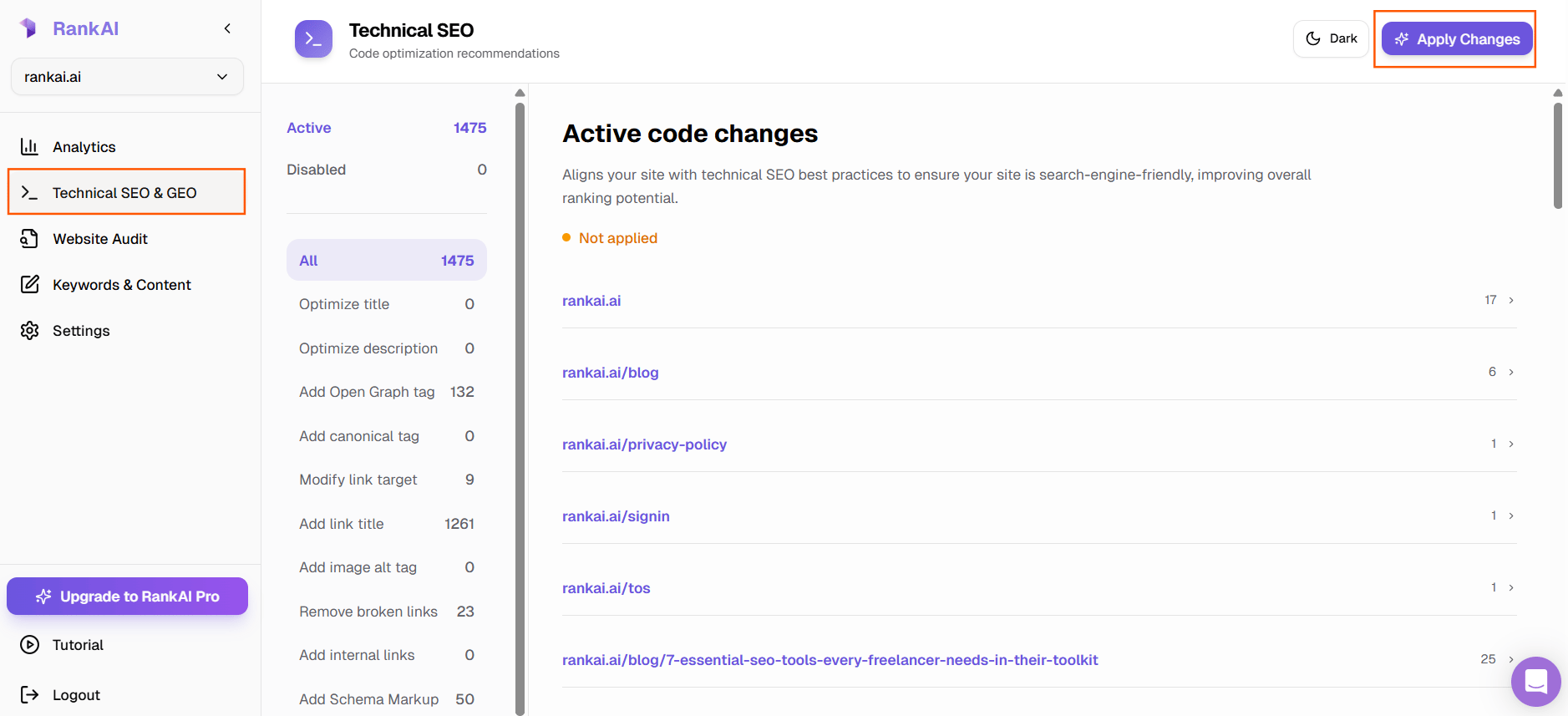
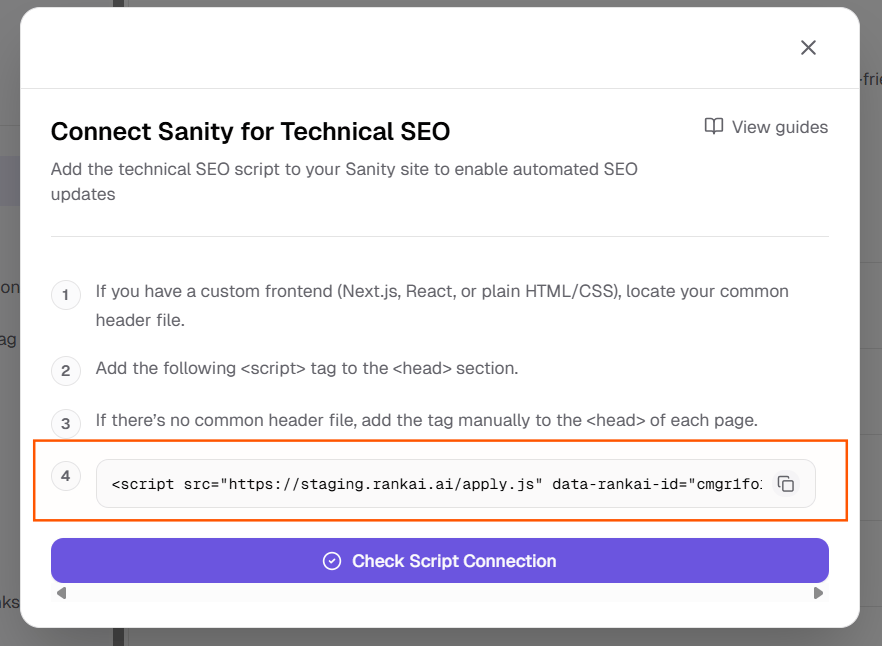 *Copy the code on the 5th step.*
Keep that code handy. In the next steps we'll add it to the \ section of your frontend so it loads on every page.
## Step 1: Locate your common header or layout file
Your frontend (Next.js, React, or plain HTML) has a place where the shared top of every page is defined. That's where the \ section usually lives. You need to add the RankAI script inside that \ so it loads on all pages.
* **Next.js (App Router):** Open `app/layout.tsx` (or `app/layout.js`). The root layout wraps every page and often includes the \ or metadata.
* **Next.js (Pages Router):** Open `pages/_document.tsx` (or `_document.js`). That file controls the HTML shell, including \.
* **React (Create React App or similar):** Open `public/index.html`. The \ is in that file.
* **Plain HTML/CSS:** If you have one main template or layout file that every page uses, open that. If each page is a separate HTML file, you'll add the script to each page's \ (see Step 3).
## Step 2: Add the script to the \ section
In the file you found, locate the **\** section. Add the RankAI script **inside** \, before the closing ``. Paste the full line you copied from RankAI. Don't change or remove any part of it.
**Next.js App Router:** You can use the `
*Copy the code on the 5th step.*
Keep that code handy. In the next steps we'll add it to the \ section of your frontend so it loads on every page.
## Step 1: Locate your common header or layout file
Your frontend (Next.js, React, or plain HTML) has a place where the shared top of every page is defined. That's where the \ section usually lives. You need to add the RankAI script inside that \ so it loads on all pages.
* **Next.js (App Router):** Open `app/layout.tsx` (or `app/layout.js`). The root layout wraps every page and often includes the \ or metadata.
* **Next.js (Pages Router):** Open `pages/_document.tsx` (or `_document.js`). That file controls the HTML shell, including \.
* **React (Create React App or similar):** Open `public/index.html`. The \ is in that file.
* **Plain HTML/CSS:** If you have one main template or layout file that every page uses, open that. If each page is a separate HTML file, you'll add the script to each page's \ (see Step 3).
## Step 2: Add the script to the \ section
In the file you found, locate the **\** section. Add the RankAI script **inside** \, before the closing ``. Paste the full line you copied from RankAI. Don't change or remove any part of it.
**Next.js App Router:** You can use the `