> ## Documentation Index
> Fetch the complete documentation index at: https://docs.rankai.ai/llms.txt
> Use this file to discover all available pages before exploring further.
# Squarespace blog integration guide (WordPress bridge)
> Connect RankAI to Squarespace using a temporary WordPress site: publish to WordPress, export, then import into Squarespace. Set your blog path for correct URL tracking.
Squarespace doesn't offer a direct API for blog publishing. This guide uses a **WordPress bridge**: you publish from RankAI to a temporary WordPress site, then export from WordPress and import into Squarespace. RankAI tracks your live URLs on Squarespace using a path you choose (e.g. `blog`).
## Where to start in RankAI
In your RankAI project, open **Settings** → **Site Integration** →**Connected CMS** and click **Configure**. Select **Squarespace**. You'll set up WordPress bridge credentials and your Squarespace blog path there.
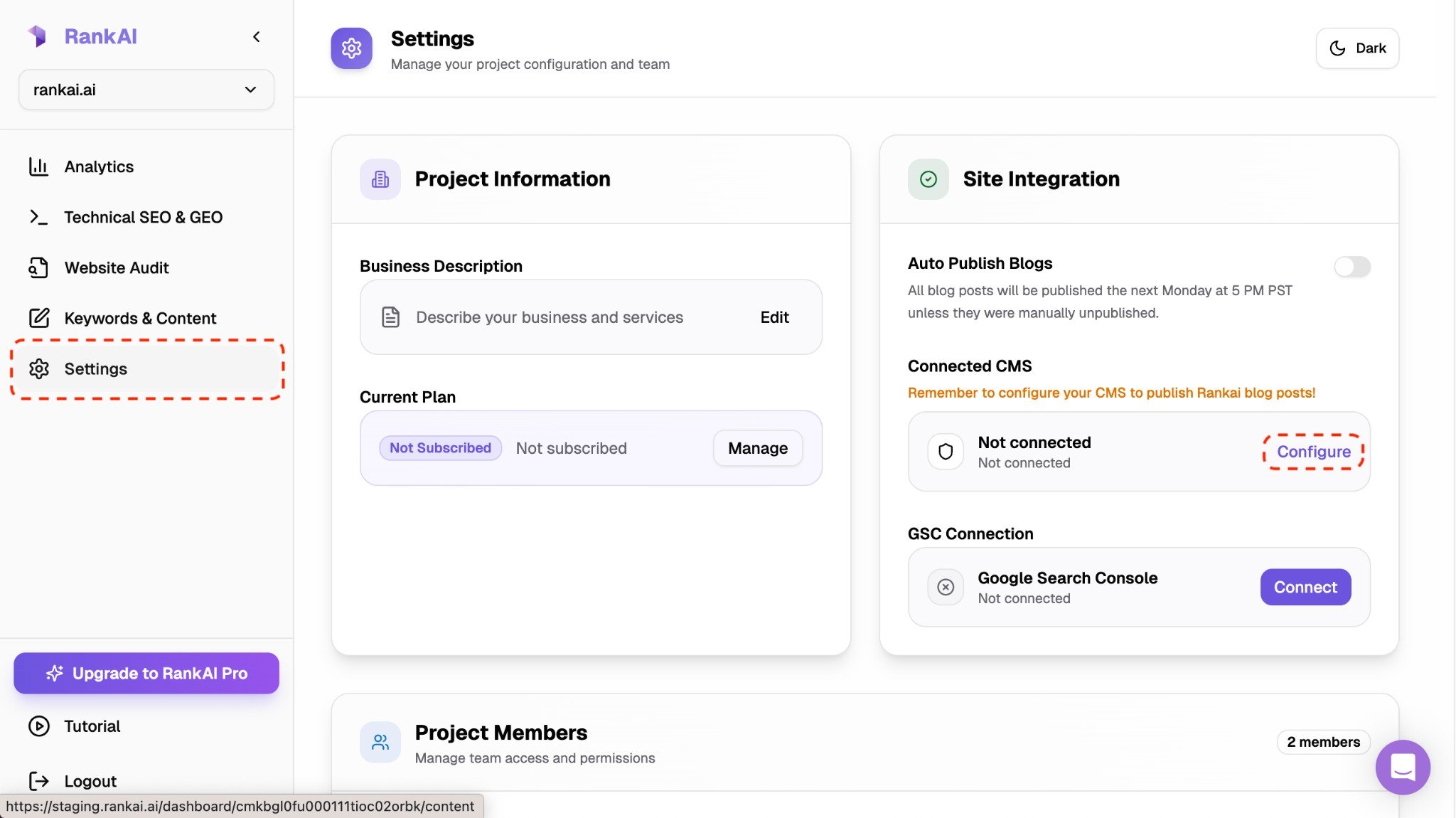 *Settings → Site Integration → Configure under Connected CMS.*
## Step 1: Set up a temporary WordPress site
Create a cheap, simple WordPress site (e.g. on WordPress.com, or any host that supports WordPress). This site is only used as a stepping stone: RankAI publishes posts here, you export them, then import into Squarespace. You don't need to point your domain to it.
Make sure the WordPress site has the REST API enabled (default) and that you can create an **Application Password** in your user profile (under Users → Profile → Application Passwords).
## Step 2: WordPress bridge credentials (follow the WordPress guide)
The steps for entering your site URL, getting an application password, and connecting credentials are the same as for a direct WordPress site. Follow the [WordPress blog integration guide](/integrations/wordpress) for:
*Settings → Site Integration → Configure under Connected CMS.*
## Step 1: Set up a temporary WordPress site
Create a cheap, simple WordPress site (e.g. on WordPress.com, or any host that supports WordPress). This site is only used as a stepping stone: RankAI publishes posts here, you export them, then import into Squarespace. You don't need to point your domain to it.
Make sure the WordPress site has the REST API enabled (default) and that you can create an **Application Password** in your user profile (under Users → Profile → Application Passwords).
## Step 2: WordPress bridge credentials (follow the WordPress guide)
The steps for entering your site URL, getting an application password, and connecting credentials are the same as for a direct WordPress site. Follow the [WordPress blog integration guide](/integrations/wordpress) for:
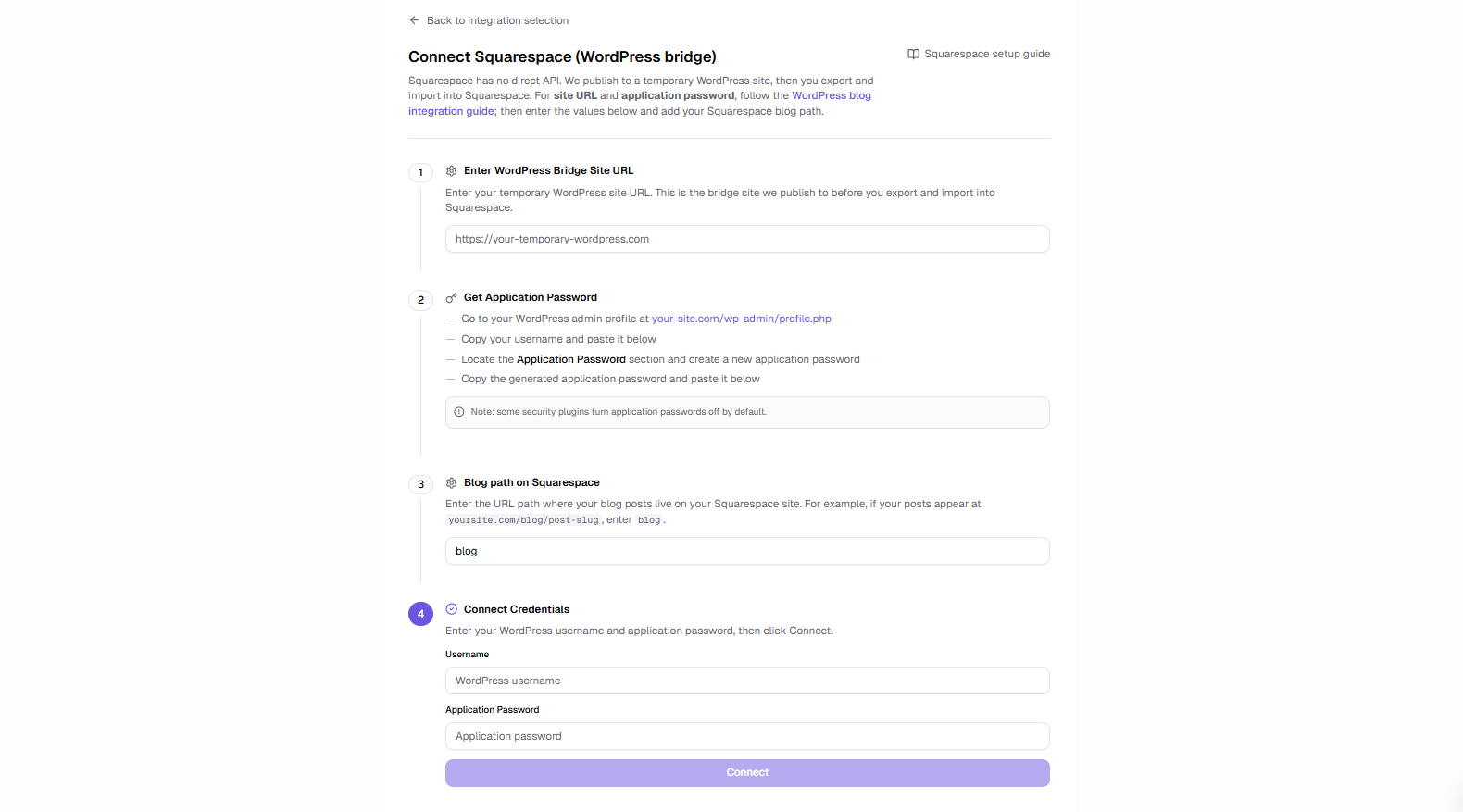 *Settings → Site Integration → Configure under Connected CMS.*
* **Step 1 in the WordPress guide:** Enter your site URL — use your temporary WordPress site URL (e.g. `https://my-temp-wp.example.com`).
* **Step 2 in the WordPress guide:** Get an application password — go to your temporary WordPress admin → Profile → Application Passwords, create one, and copy your username and the generated password.
* **Step 3 in the WordPress guide:** Connect your credentials — enter that username and application password in RankAI and click Connect.
In RankAI, do these steps in the **Squarespace** integration screen (not the WordPress one). You'll also see a field for **Blog path on Squarespace** — enter the path where your posts live on your Squarespace site (e.g. `blog` so URLs look like `yoursite.com/blog/post-slug`). Then click **Connect**. RankAI will verify the WordPress bridge and save the settings.
*Settings → Site Integration → Configure under Connected CMS.*
* **Step 1 in the WordPress guide:** Enter your site URL — use your temporary WordPress site URL (e.g. `https://my-temp-wp.example.com`).
* **Step 2 in the WordPress guide:** Get an application password — go to your temporary WordPress admin → Profile → Application Passwords, create one, and copy your username and the generated password.
* **Step 3 in the WordPress guide:** Connect your credentials — enter that username and application password in RankAI and click Connect.
In RankAI, do these steps in the **Squarespace** integration screen (not the WordPress one). You'll also see a field for **Blog path on Squarespace** — enter the path where your posts live on your Squarespace site (e.g. `blog` so URLs look like `yoursite.com/blog/post-slug`). Then click **Connect**. RankAI will verify the WordPress bridge and save the settings.
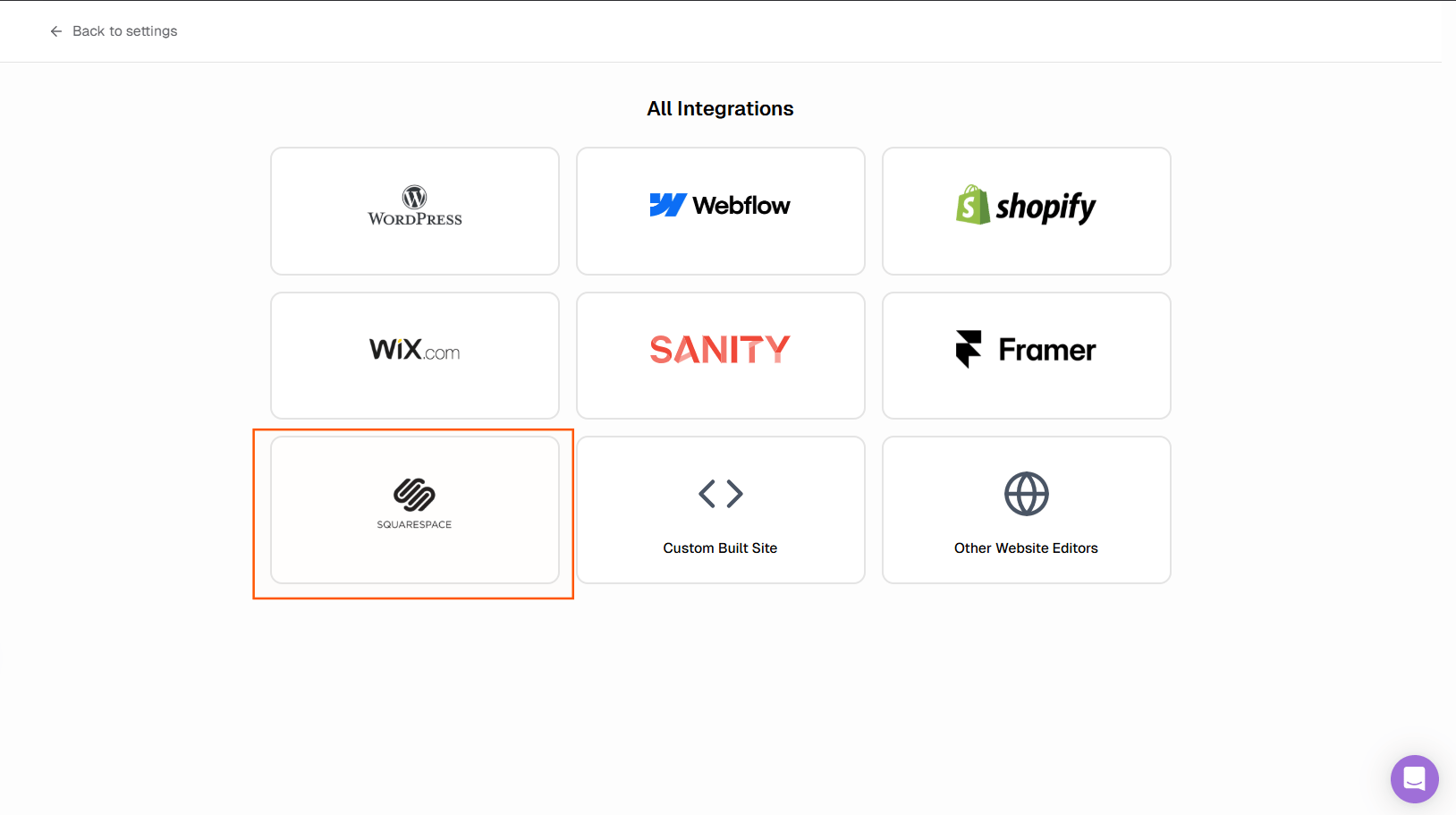 *Settings → Site Integration → Configure under Connected CMS.*
## Step 3: Publish a post from RankAI to WordPress
When you publish a post from RankAI, we send it to your WordPress bridge site. After that, you'll export from WordPress and import into Squarespace (steps below). RankAI will record the **final Squarespace URL** using your project domain and the blog path you set (we do not use the WordPress post URL for tracking).
*Settings → Site Integration → Configure under Connected CMS.*
## Step 3: Publish a post from RankAI to WordPress
When you publish a post from RankAI, we send it to your WordPress bridge site. After that, you'll export from WordPress and import into Squarespace (steps below). RankAI will record the **final Squarespace URL** using your project domain and the blog path you set (we do not use the WordPress post URL for tracking).
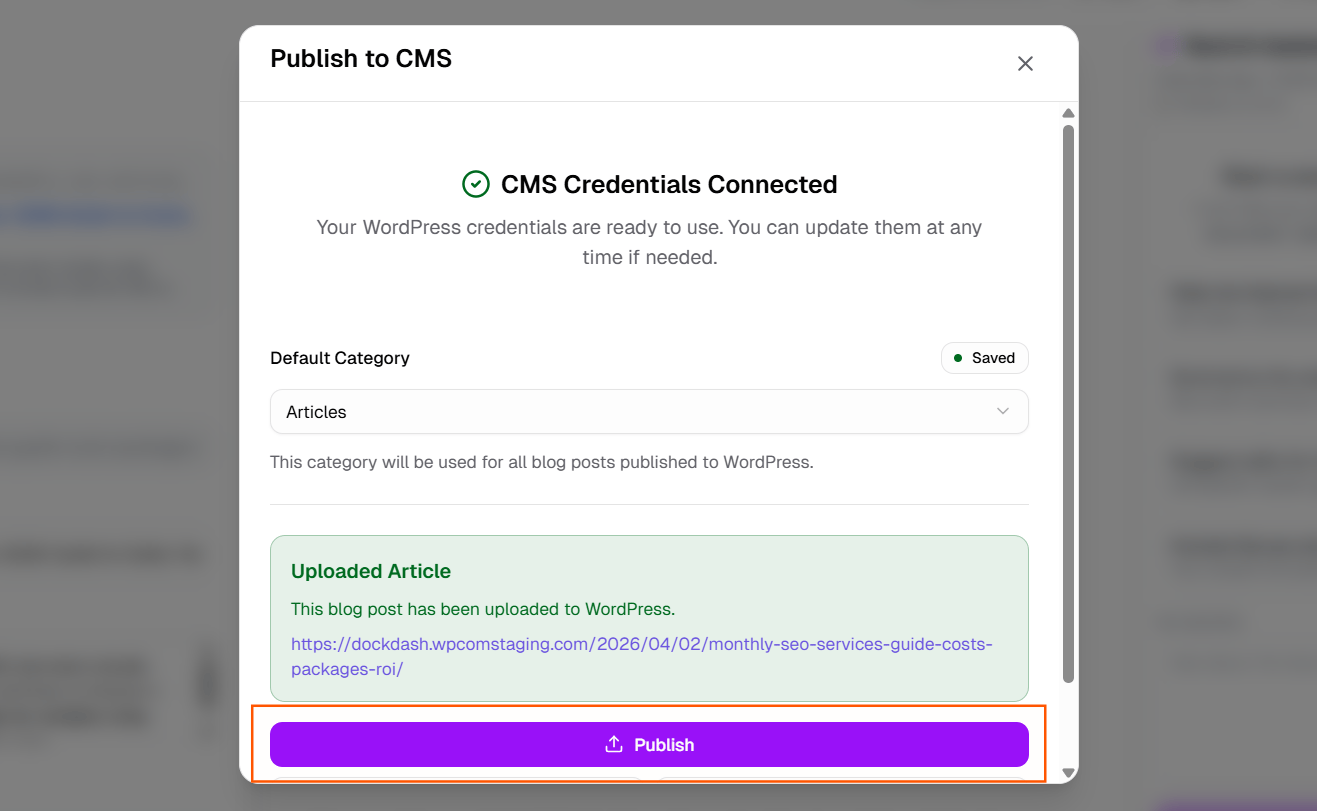 *Settings → Site Integration → Configure under Connected CMS.*
## Step 4: Export from WordPress
In your Bridge WordPress site:
1. Go to **Tools → Export**.
2. Select **Posts** and click **Download Export File**.
3. Save the XML file.
*Settings → Site Integration → Configure under Connected CMS.*
## Step 4: Export from WordPress
In your Bridge WordPress site:
1. Go to **Tools → Export**.
2. Select **Posts** and click **Download Export File**.
3. Save the XML file.
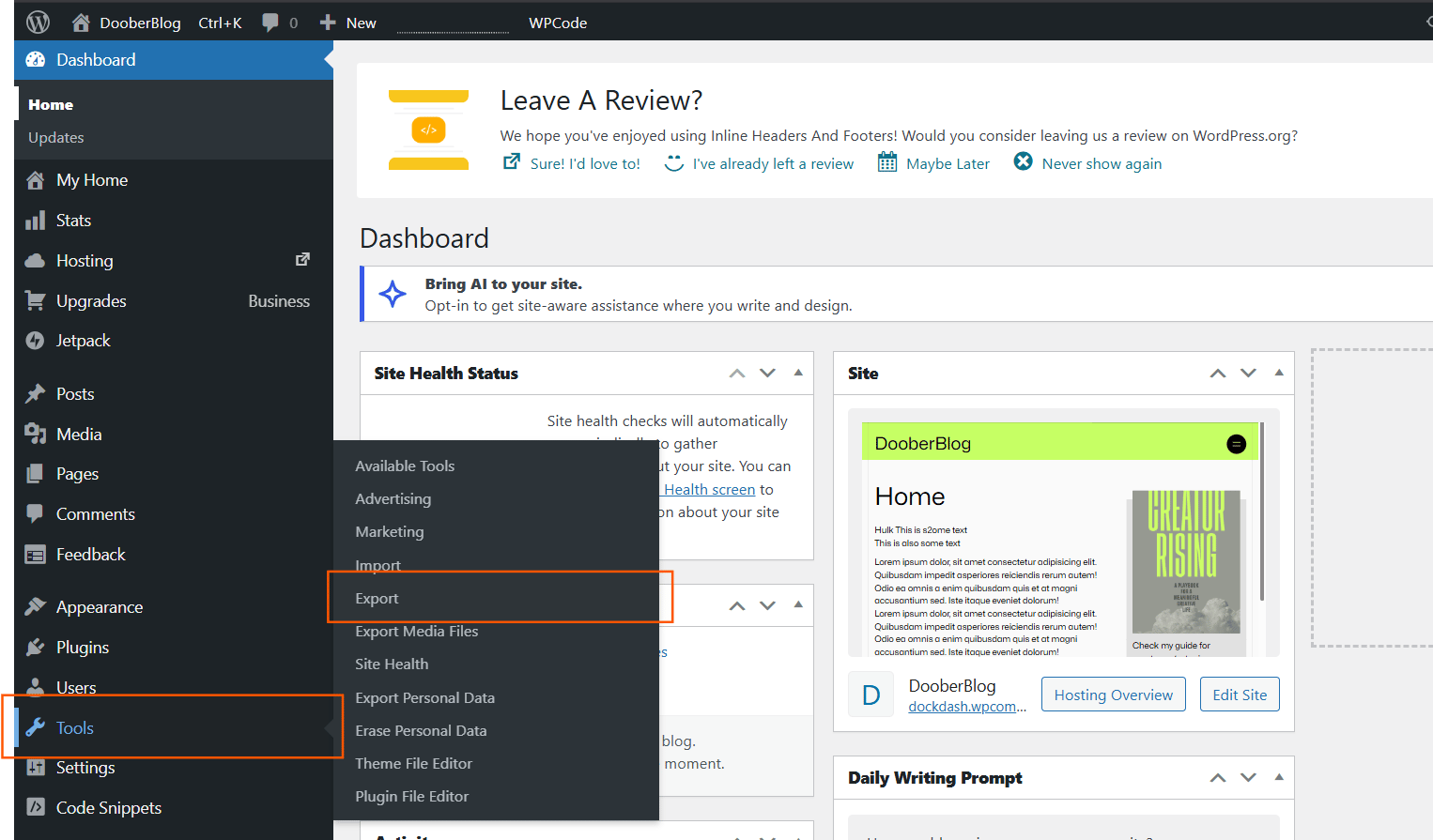 *Tools → Export*
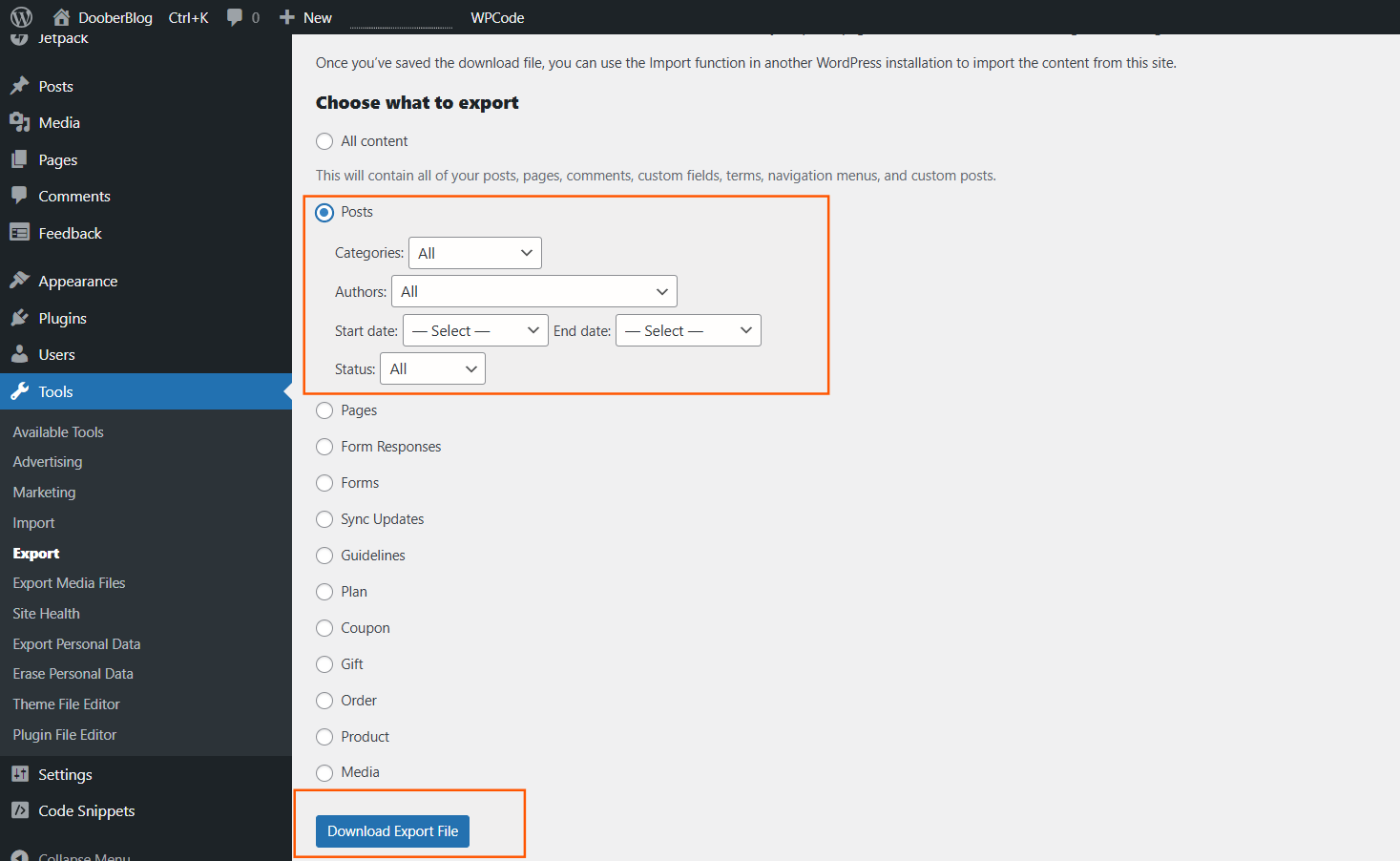 *Posts → Download Export File*
## Step 5: Import into Squarespace
In your Squarespace site:
1. Go to **Settings → Website → Import & Export Content**.
*Posts → Download Export File*
## Step 5: Import into Squarespace
In your Squarespace site:
1. Go to **Settings → Website → Import & Export Content**.
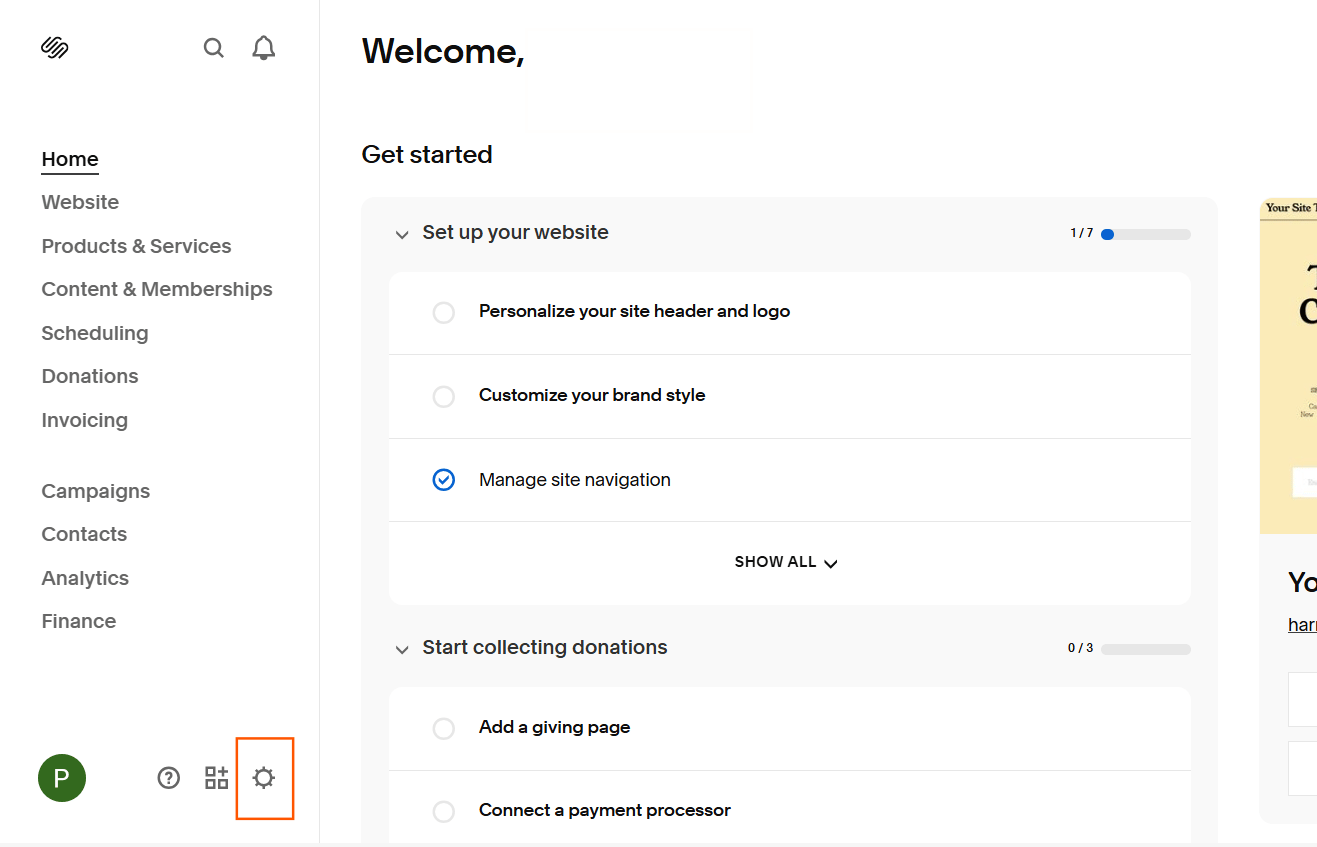 *Squarespace website → Settings*
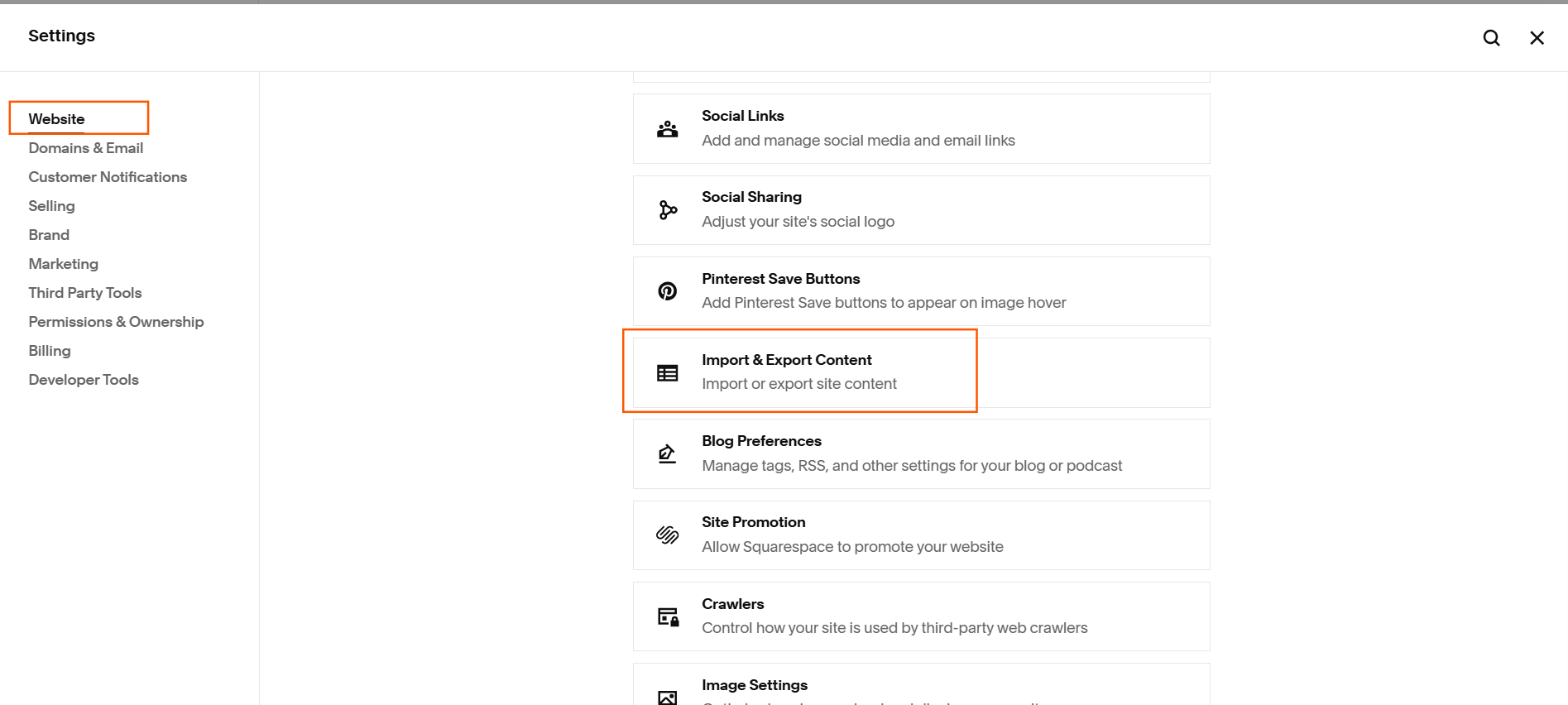 *Import & Export Content*
2. Choose **Import** → **WordPress**.
*Import & Export Content*
2. Choose **Import** → **WordPress**.
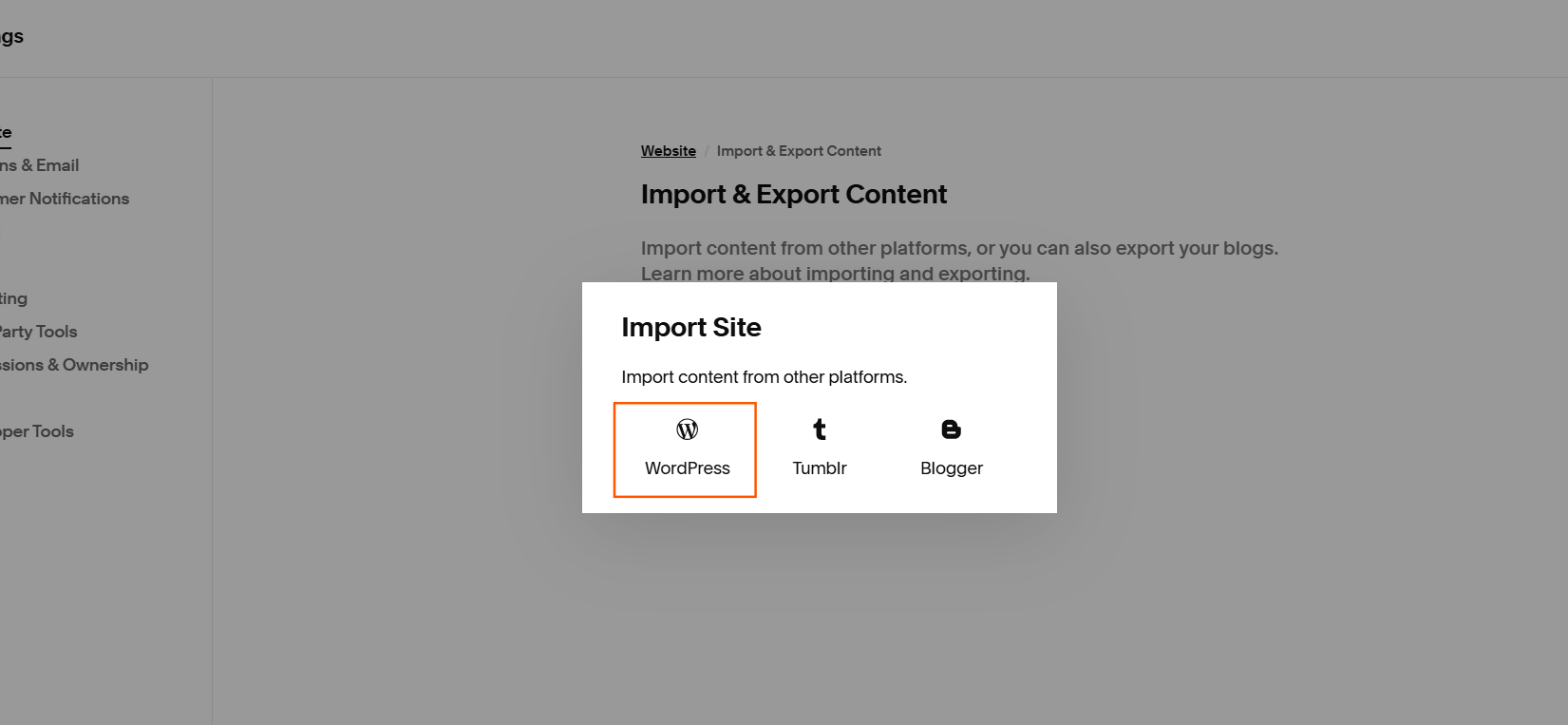 *Import → WordPress*
3. Select Advanced → Upload the WordPress XML file you exported and click Import.
*Import → WordPress*
3. Select Advanced → Upload the WordPress XML file you exported and click Import.
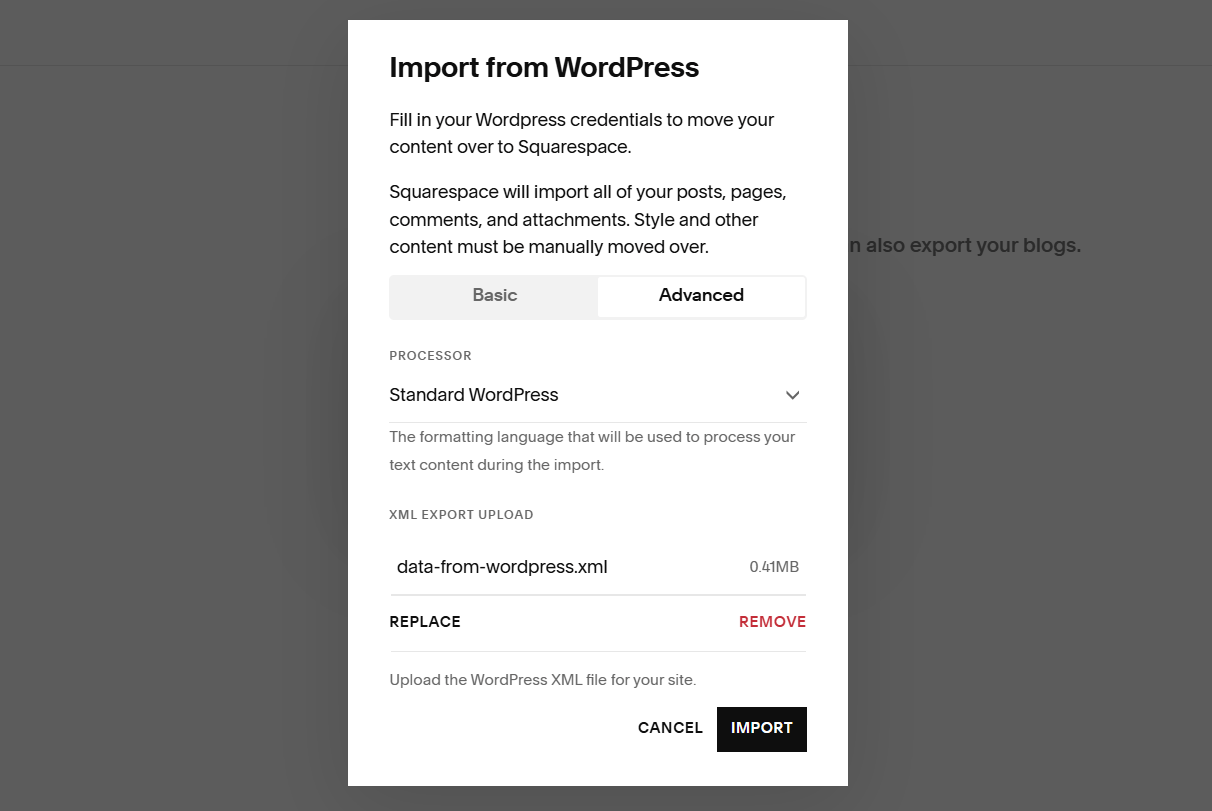 *Import → WordPress → Advanced*
4. Wait for the import to finish (it can take a few minutes).
Review and organize the imported content in Squarespace as needed.
## Limitations
* Real-time automation is not possible; export/import is manual.
* You need to maintain a temporary WordPress site and repeat export/import for each batch of posts.
This workflow gives you a way to use RankAI content on Squarespace with correct URL tracking for SEO and AEO.
## Quick checklist
* Created a temporary WordPress site
* Followed the [WordPress blog integration guide](/integrations/wordpress) for site URL, application password, and connecting credentials (in the Squarespace screen, plus blog path)
* Published from RankAI to WordPress
* Exported posts from WordPress (Tools → Export → Posts)
* Imported into Squarespace (Settings → Advanced → Import / Export → WordPress)
## Install the technical SEO & AEO script
The CMS connection above handles articles. Follow the separate [illustrated technical SEO & AEO setup](/integrations/technical-seo/squarespace) to install the RankAI script.
***
*Last reviewed: October 12, 2026.*
This documentation is built and hosted on [Mintlify](https://mintlify.com), a developer documentation platform.
*Import → WordPress → Advanced*
4. Wait for the import to finish (it can take a few minutes).
Review and organize the imported content in Squarespace as needed.
## Limitations
* Real-time automation is not possible; export/import is manual.
* You need to maintain a temporary WordPress site and repeat export/import for each batch of posts.
This workflow gives you a way to use RankAI content on Squarespace with correct URL tracking for SEO and AEO.
## Quick checklist
* Created a temporary WordPress site
* Followed the [WordPress blog integration guide](/integrations/wordpress) for site URL, application password, and connecting credentials (in the Squarespace screen, plus blog path)
* Published from RankAI to WordPress
* Exported posts from WordPress (Tools → Export → Posts)
* Imported into Squarespace (Settings → Advanced → Import / Export → WordPress)
## Install the technical SEO & AEO script
The CMS connection above handles articles. Follow the separate [illustrated technical SEO & AEO setup](/integrations/technical-seo/squarespace) to install the RankAI script.
***
*Last reviewed: October 12, 2026.*
This documentation is built and hosted on [Mintlify](https://mintlify.com), a developer documentation platform.