> ## Documentation Index
> Fetch the complete documentation index at: https://docs.rankai.ai/llms.txt
> Use this file to discover all available pages before exploring further.
# Framer blog integration guide
> Connect RankAI to Framer by installing the RankAI plugin, adding your project ID, and creating a CMS page for your posts.
This guide walks you through connecting your Framer project to RankAI so we can publish and manage your SEO and AEO content. You will need access to your Framer project and your RankAI dashboard.
## Where to start in RankAI
In your RankAI project, open **Settings** in the sidebar. Under **Site Integration**, find **Connected CMS** and click **Configure**. On the next screen, select **Framer** to continue.
## Step 1: Install the RankAI plugin in Framer
In your Framer dashboard, select the project you want to connect. Open the **CMS** section from the top, then in the top navigation bar click **Plugins**.
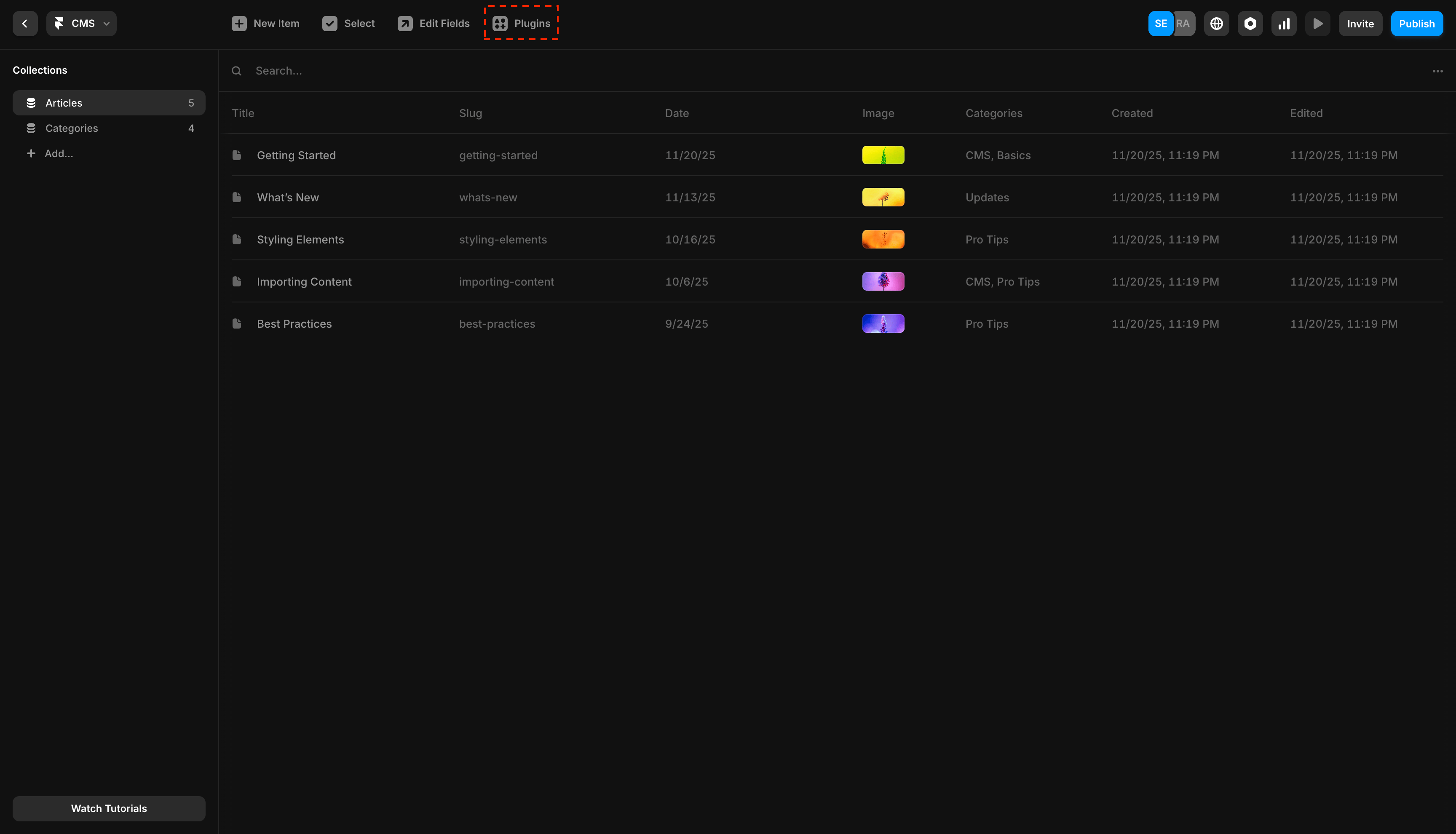 *Open the plugin browser.*
In the plugin browser, search for **RankAI** and install the plugin.
*Open the plugin browser.*
In the plugin browser, search for **RankAI** and install the plugin.
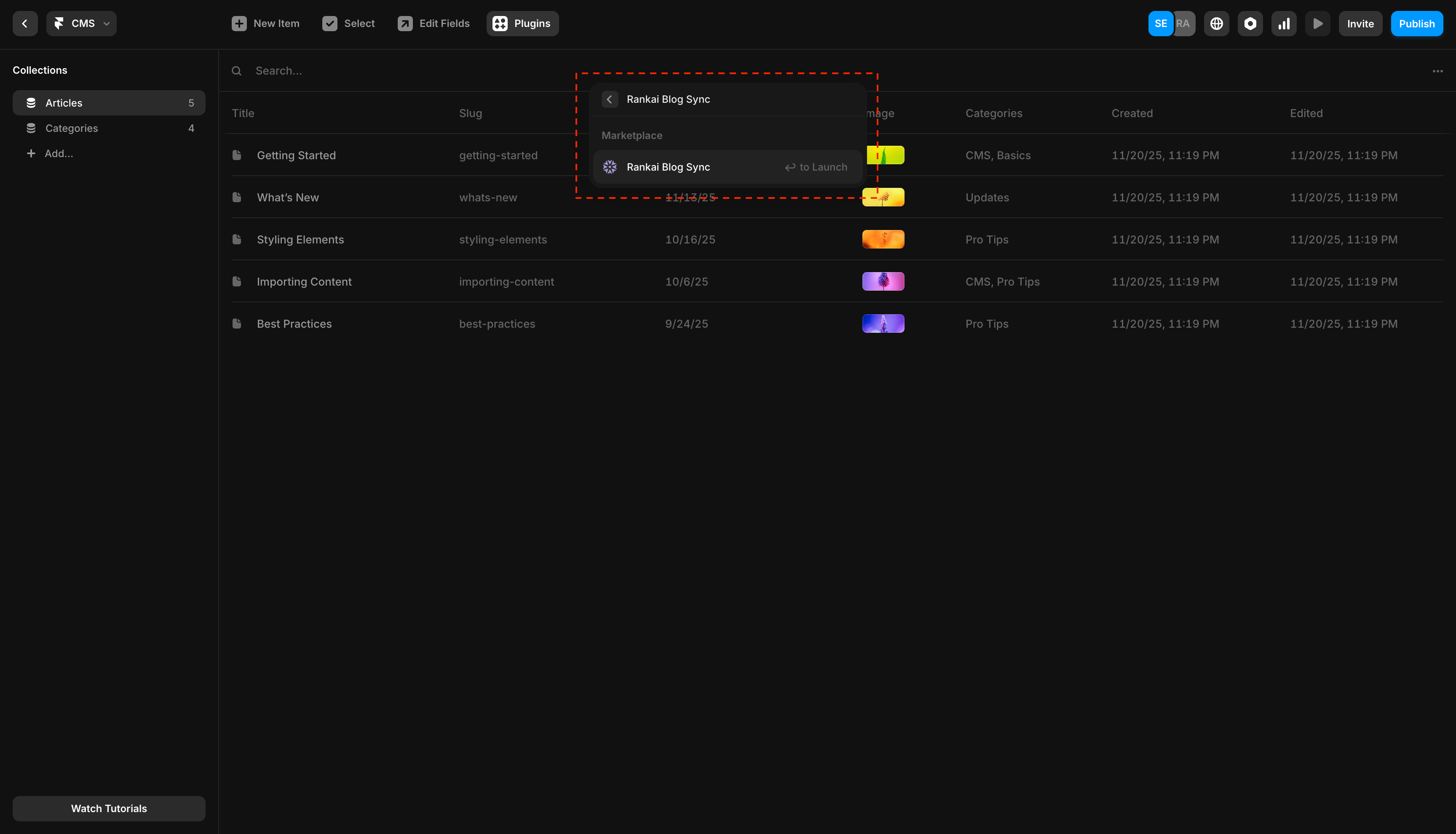 *Search for the RankAI plugin in the Framer plugin browser.*
## Step 2: Connect the plugin with your RankAI project ID
Open the RankAI plugin you just installed from the **Synced** section in Framer. Copy your **Project ID** from RankAI and paste it into the plugin, then click **Submit**.
*Search for the RankAI plugin in the Framer plugin browser.*
## Step 2: Connect the plugin with your RankAI project ID
Open the RankAI plugin you just installed from the **Synced** section in Framer. Copy your **Project ID** from RankAI and paste it into the plugin, then click **Submit**.
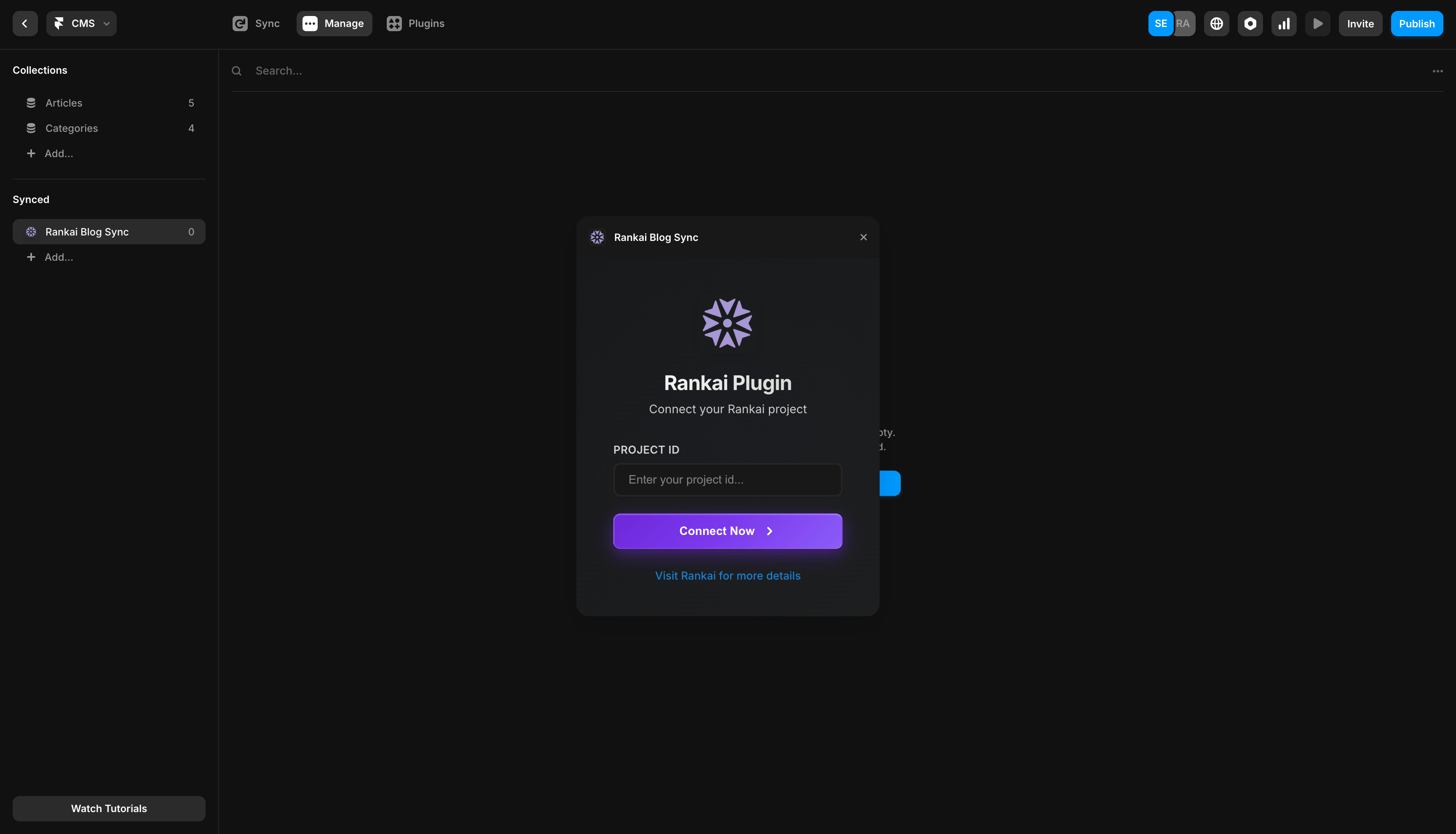 *Paste your RankAI Project ID into the plugin.*
After RankAI publishes a post, go to the RankAI plugin in Framer and click **Sync** to pull the content into your CMS collection.
*Paste your RankAI Project ID into the plugin.*
After RankAI publishes a post, go to the RankAI plugin in Framer and click **Sync** to pull the content into your CMS collection.
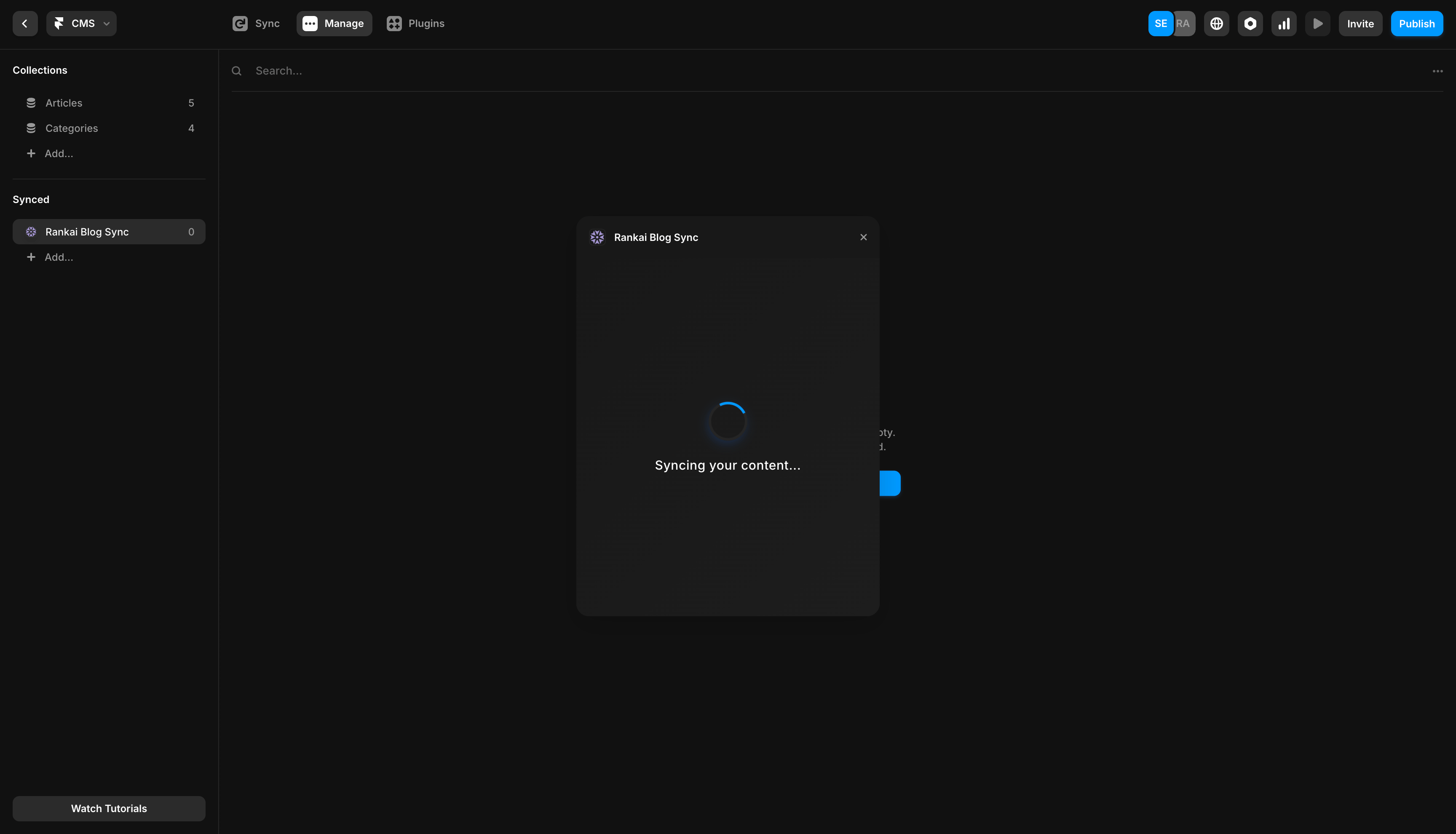 *Trigger the initial sync from the RankAI plugin.*
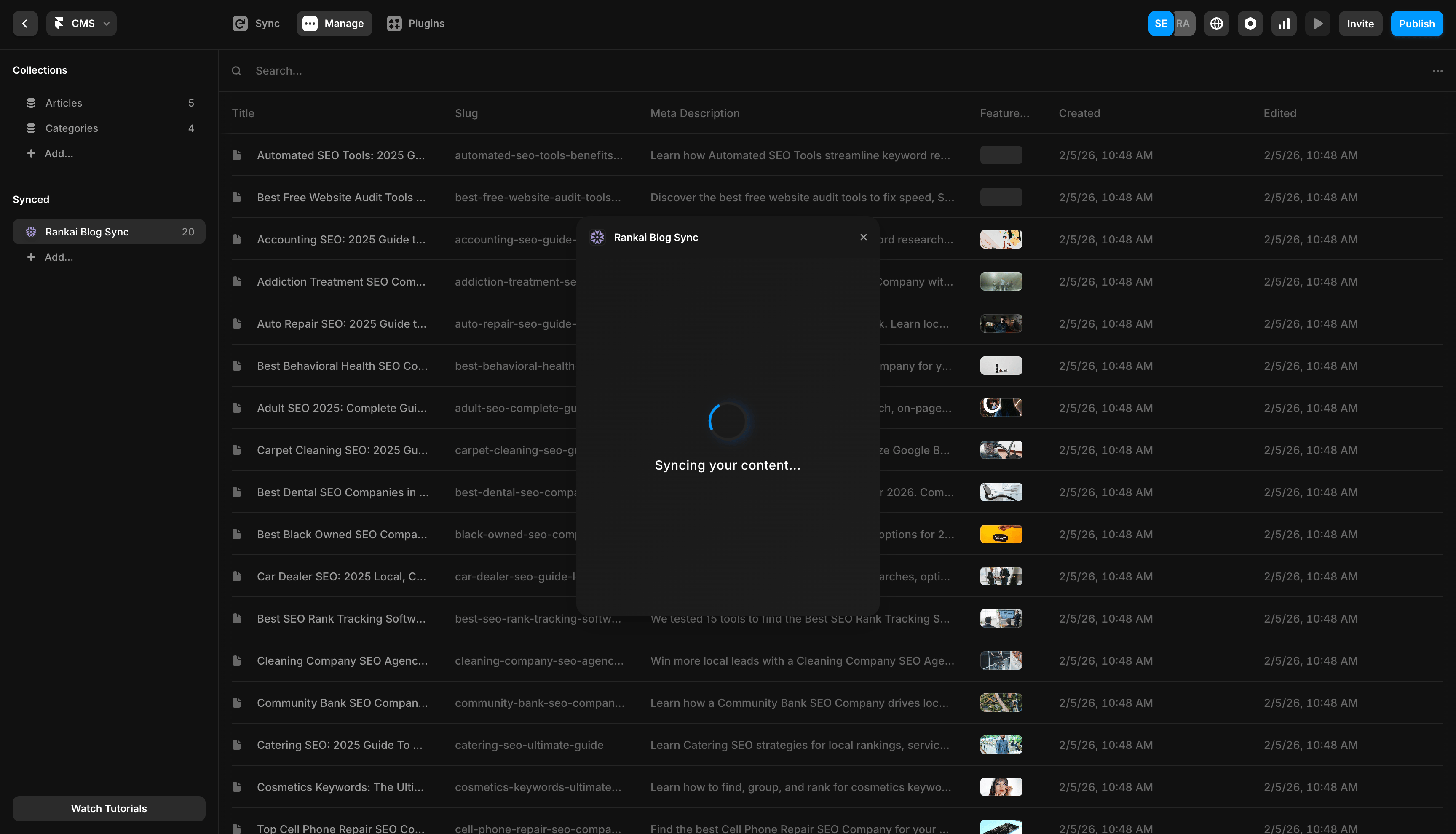 *Wait for the sync to finish before checking your CMS collection.*
If you don't have any posts yet, you will not see any posts synced to your CMS collection. But we can still go ahead with the rest of the steps.
Once the plugin is connected, return to RankAI and click **Connect** to verify the installation.
*Wait for the sync to finish before checking your CMS collection.*
If you don't have any posts yet, you will not see any posts synced to your CMS collection. But we can still go ahead with the rest of the steps.
Once the plugin is connected, return to RankAI and click **Connect** to verify the installation.
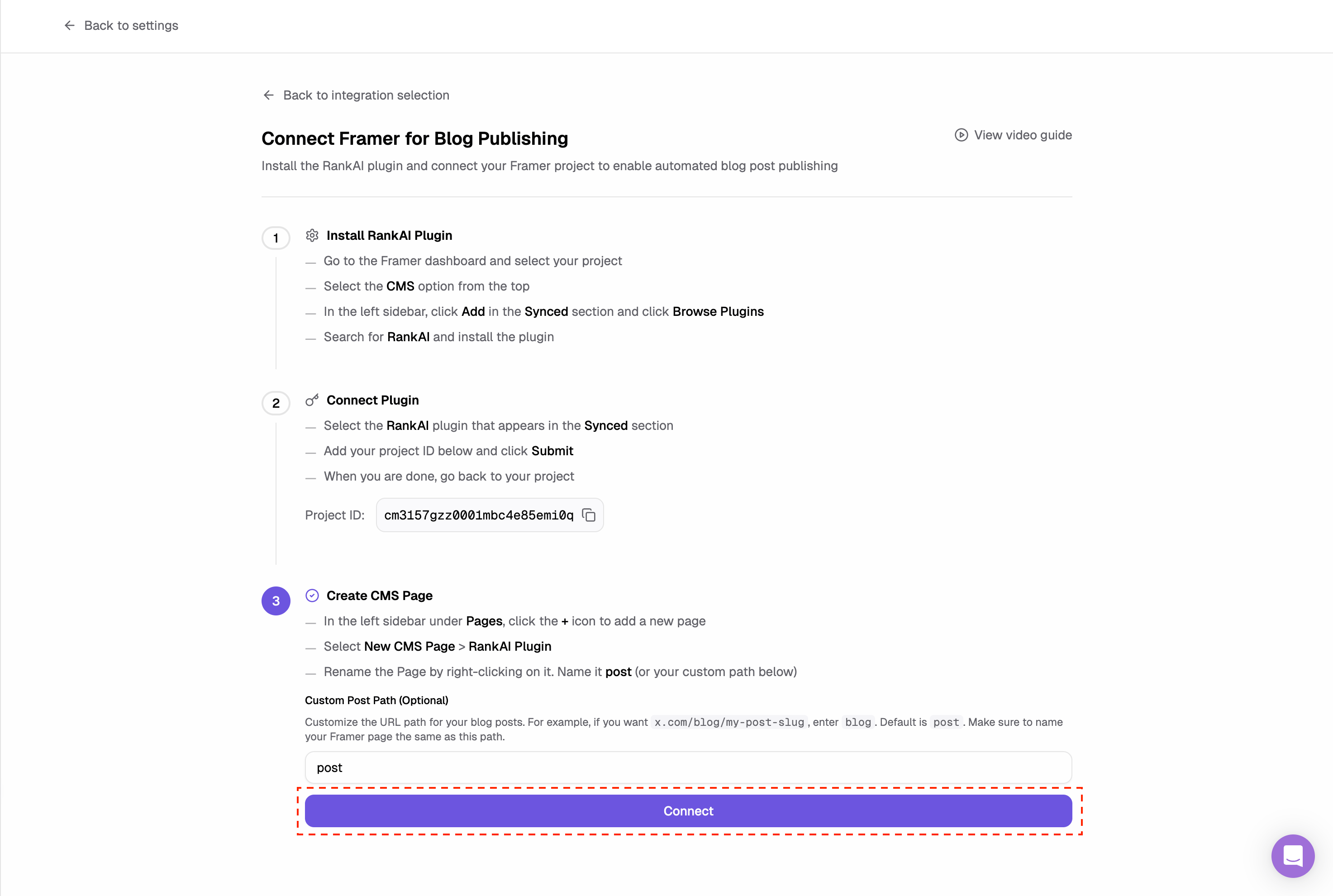 *Click the Connect button to verify the installation.*
## Step 3: Create a CMS page for RankAI posts
In Framer, go to **Pages** in the left sidebar and click the **+** icon. Choose **New CMS Page** and select the **RankAI Plugin**.
*Click the Connect button to verify the installation.*
## Step 3: Create a CMS page for RankAI posts
In Framer, go to **Pages** in the left sidebar and click the **+** icon. Choose **New CMS Page** and select the **RankAI Plugin**.
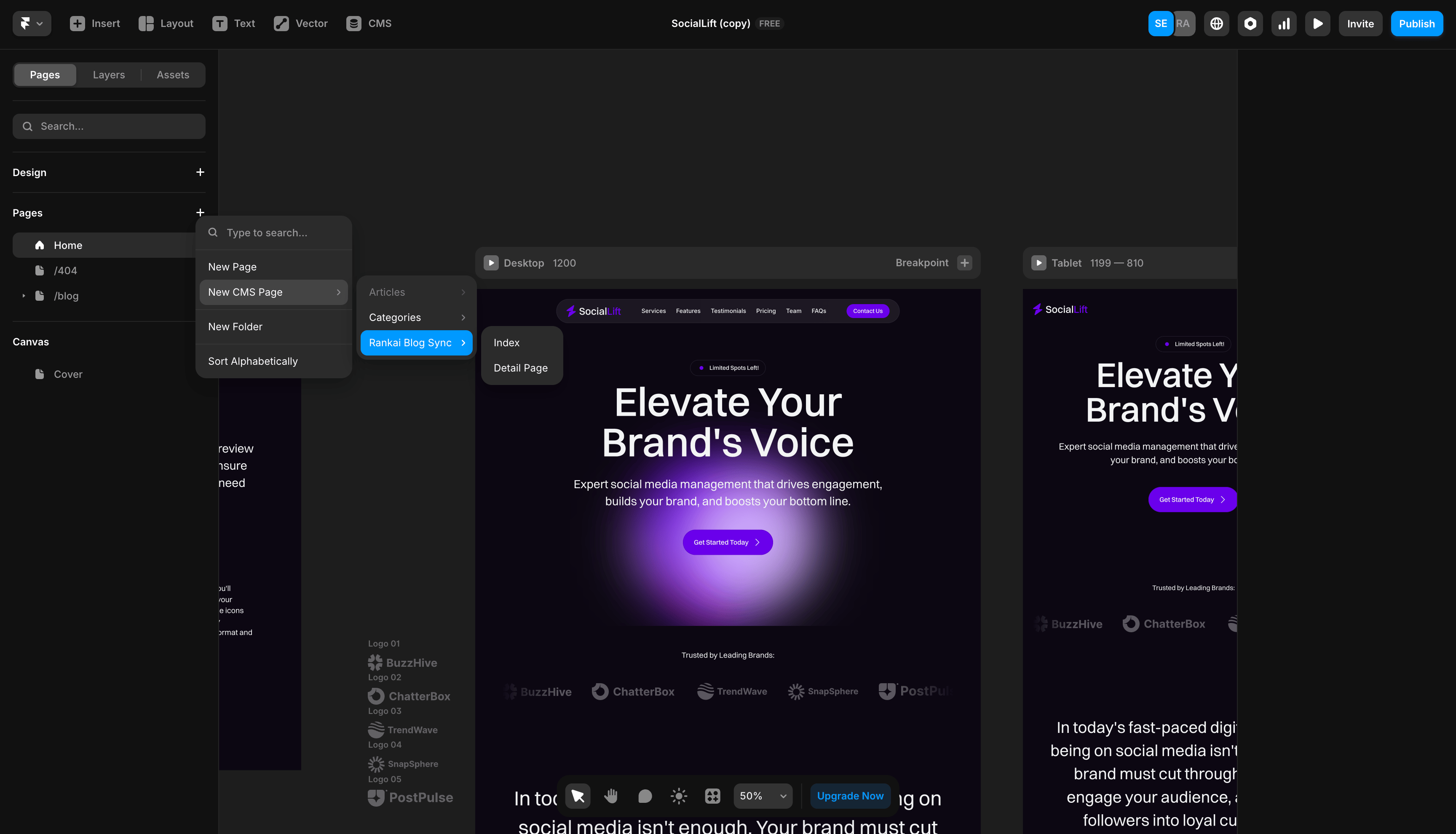 *Create a new CMS page and select the RankAI plugin template.*
You can also customize the CMS page layout and components to match your website styling.
*Create a new CMS page and select the RankAI plugin template.*
You can also customize the CMS page layout and components to match your website styling.
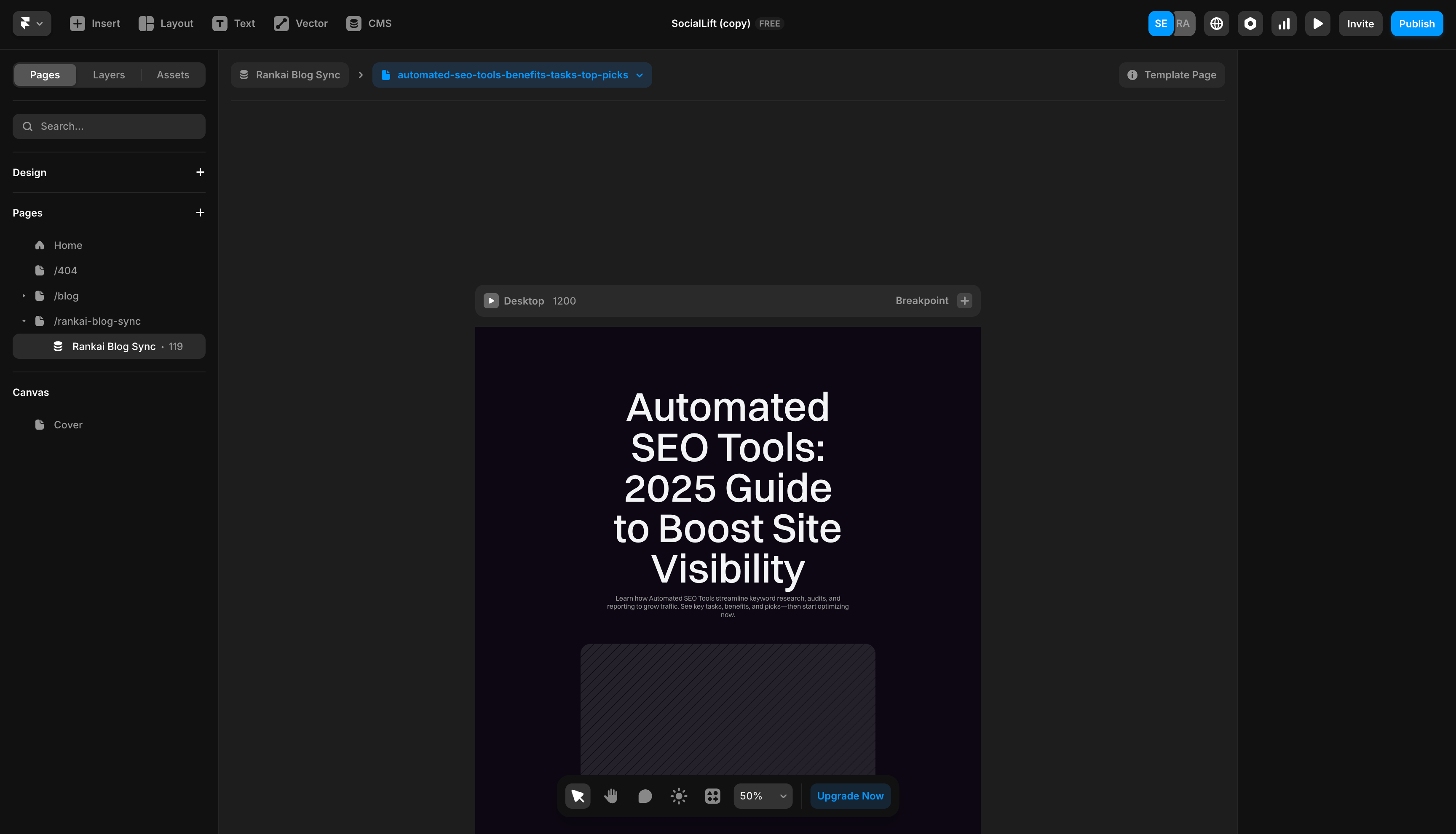 *CMS page created successfully.*
Rename the page to your post path (default is `post`), or set a custom path like `blog`.
*CMS page created successfully.*
Rename the page to your post path (default is `post`), or set a custom path like `blog`.
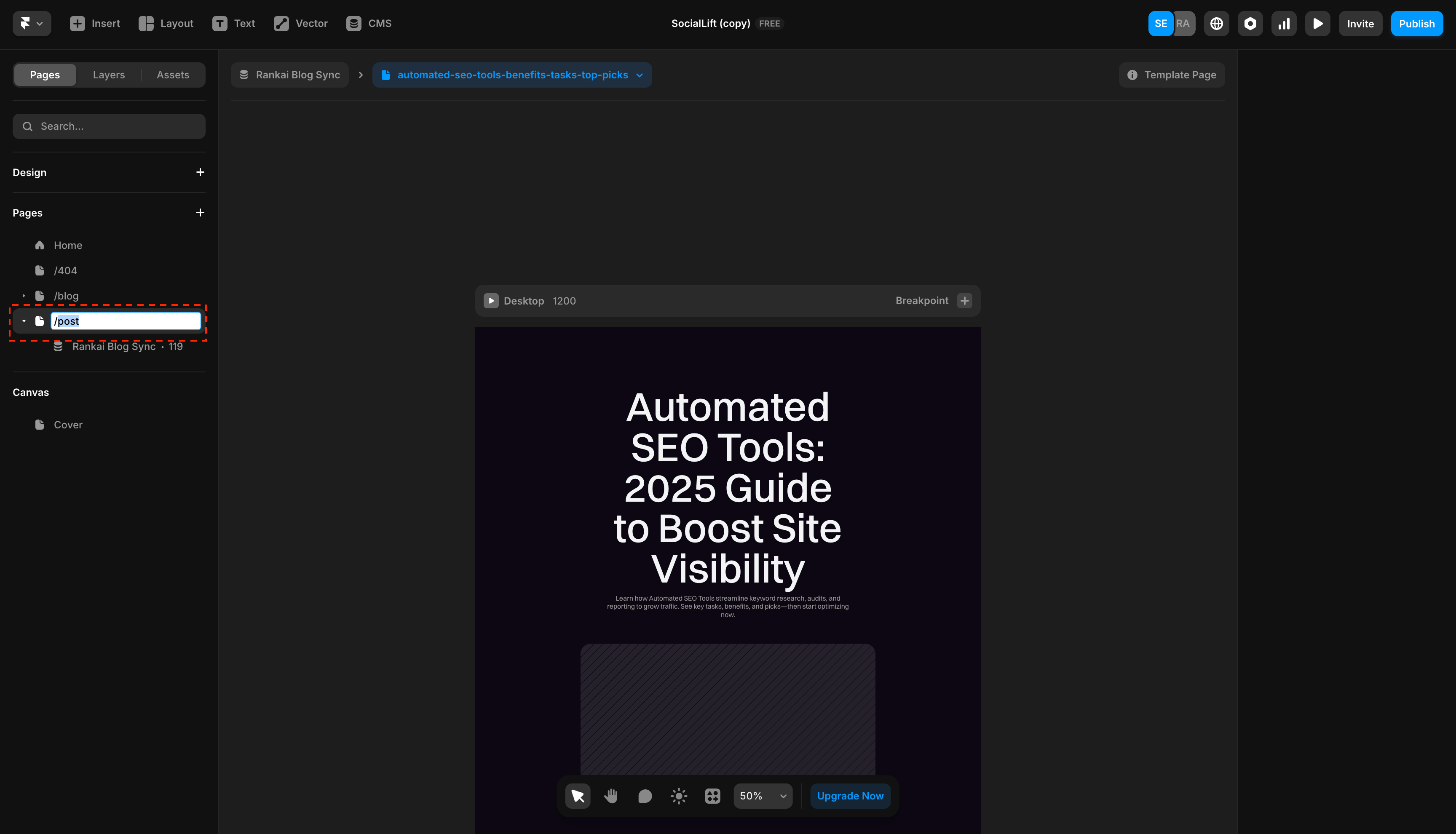 *Change the page path to your desired path.*
Make sure to update the page path in RankAI to match the page path in Framer.
*Change the page path to your desired path.*
Make sure to update the page path in RankAI to match the page path in Framer.
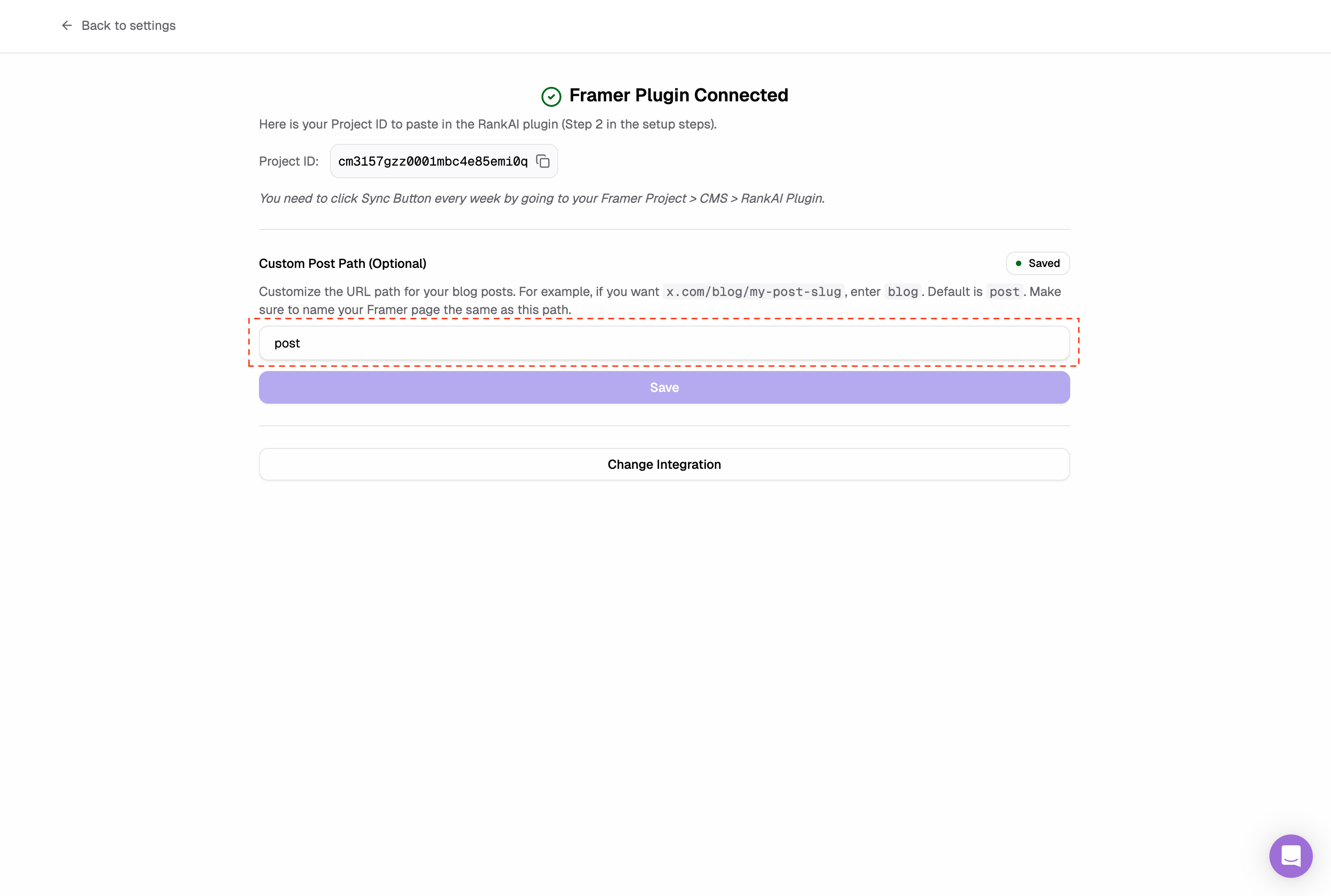 *Update the page path in RankAI to match the page path in Framer.*
Note
If RankAI can’t detect the plugin, double-check that the correct Project ID was inputted in the RankAI plugin.
## FAQ
### What should I use for the post path?
The default path is `post`, but you can use `blog` or any other path that matches your Framer page name.
### I connected the plugin, but RankAI says it can’t detect it.
Confirm the RankAI plugin is installed in your Framer project, the Project ID is saved, and the CMS page was created from the RankAI plugin template.
### Where can I get more support?
Contact your RankAI account team or check the help section in your dashboard.
## Install the technical SEO & AEO script
The CMS connection above handles articles. Follow the separate [illustrated technical SEO & AEO setup](/integrations/technical-seo/framer) to install the RankAI script.
***
*Last reviewed: October 12, 2026.*
This documentation is built and hosted on [Mintlify](https://mintlify.com), a developer documentation platform.
*Update the page path in RankAI to match the page path in Framer.*
Note
If RankAI can’t detect the plugin, double-check that the correct Project ID was inputted in the RankAI plugin.
## FAQ
### What should I use for the post path?
The default path is `post`, but you can use `blog` or any other path that matches your Framer page name.
### I connected the plugin, but RankAI says it can’t detect it.
Confirm the RankAI plugin is installed in your Framer project, the Project ID is saved, and the CMS page was created from the RankAI plugin template.
### Where can I get more support?
Contact your RankAI account team or check the help section in your dashboard.
## Install the technical SEO & AEO script
The CMS connection above handles articles. Follow the separate [illustrated technical SEO & AEO setup](/integrations/technical-seo/framer) to install the RankAI script.
***
*Last reviewed: October 12, 2026.*
This documentation is built and hosted on [Mintlify](https://mintlify.com), a developer documentation platform.